BigQuery is one of nine connectors in QueryFlow 1.7. Once it's connected, you get the same SQL editor, Explorer, Ask panel, Scheduler, and Watches as every other warehouse, pointed at your BigQuery project.
There are two ways in: sign in with your own Google account, or add a service account key for a setup that isn't tied to one person. Both take a few minutes.
Before you start
- A Google Cloud project with BigQuery enabled, and its Project ID.
- A Google account with BigQuery access, or permission to create a service account key.
- Any tier. BigQuery is included in Studio.
Steps
- Click the + button next to Databases in the sidebar.
- Select BigQuery from the provider grid.
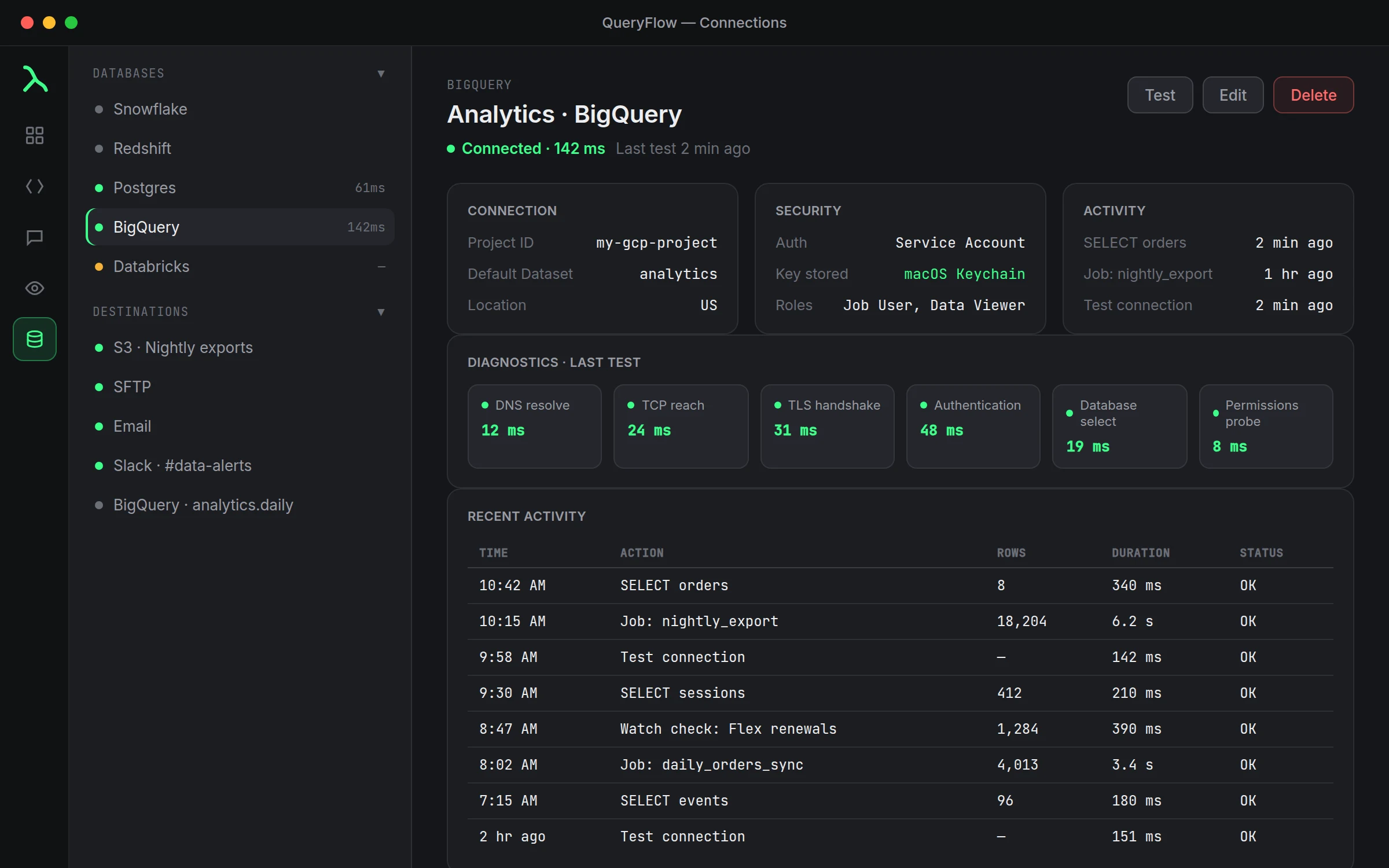
- Enter the Project ID (e.g.
my-gcp-project). - Optionally fill in Default Dataset and Location (e.g.
US). - Under Authentication, choose Sign in with Google or Service Account.
- For Sign in with Google: click Sign in with Google and finish the browser sign-in.
- For Service Account: in Google Cloud Console, go to IAM & Admin → Service Accounts → Create Service Account.
- Grant it BigQuery Job User and BigQuery Data Viewer. Add BigQuery Data Editor if you'll write to BigQuery.
- Open the service account, go to Keys, click Add Key → Create new key, choose JSON, and download it.
- Back in QueryFlow, click Choose JSON key… and pick the file (or use Paste JSON instead).
- Click Save.
Check it worked: click Test. The status dot turns green and the header reads "Connected" with a latency.
If your Google account belongs to a Workspace organization with domain restrictions, the sign-in step may need an admin to allow QueryFlow's OAuth request first. That's a Google Workspace setting, not something QueryFlow controls.
Which authentication method to pick usually comes down to who else needs the connection. Sign in with Google is the faster path for a connection only you use: no console work, no key file to manage, and the credential renews itself through your normal Google session. A service account makes more sense once a scheduled job needs to run at 6 AM with nobody logged in, or once more than one person on the team needs the same project without sharing a personal login.
The three roles worth understanding before you're in the IAM console: BigQuery Job User lets the account run queries and pay for the compute, BigQuery Data Viewer lets it read table data, and BigQuery Data Editor lets it write. Grant only what the connection actually needs. A read-only dashboard connection doesn't need Data Editor, and leaving it off is one less thing to worry about if the JSON key ever leaks.
Once the connection is green, the same project shows up everywhere QueryFlow queries from: the SQL editor, Flow Books notebooks, the Explorer's dataset browser, and the Ask panel if you've added an AI key separately. Nothing about the BigQuery side changes between those surfaces, the connection is the same one you just set up.
If something goes wrong
| If you see | Fix |
|---|---|
| Not signed in to Google. Click 'Sign in with Google', or add a service account key, in connection settings. | Finish the Google sign-in, or add a service account key. |
| BigQuery denied access. Check that the account/service account has BigQuery Job User and Data Viewer roles. | Add the missing roles in Google Cloud Console. |
| BigQuery project or dataset not found. Check the project ID and dataset in connection settings. | Re-check the Project ID and Default Dataset spelling. |
| BigQuery credentials were rejected. Re-authenticate with Google or re-check the service account key. | Sign in again, or re-add the JSON key. |