Every provider, from Snowflake to a CSV file, goes through the same Connections screen in 1.7: one header with a name, a status dot, and Test, Edit and Delete in the same row, details grouped into cards underneath.
This tutorial covers the parts that work the same for all nine connectors: adding one, reading its status, and reading what the Diagnostics panel tells you when a test fails.
Steps
- Click the + button next to Databases to add one.
- Fill in the fields for your provider and click Save.
- Select the connection and click Test.
- Read the status dot: gray = never tested, green = connected, red = failed.
- Hover the row to see latency in milliseconds.
- Click Edit to change any field.
- If a test fails, read the Diagnostics panel. Each stage (DNS resolve, TCP reach, TLS handshake, Authentication, Database select, Permissions probe) shows pass, fail or skip.
- Expand Details for the raw error, or use Copy message, Copy full details, Copy as JSON or Save Diagnostics….
- To remove one, right-click it, choose Delete Connection, and confirm. Its stored credentials are deleted too.
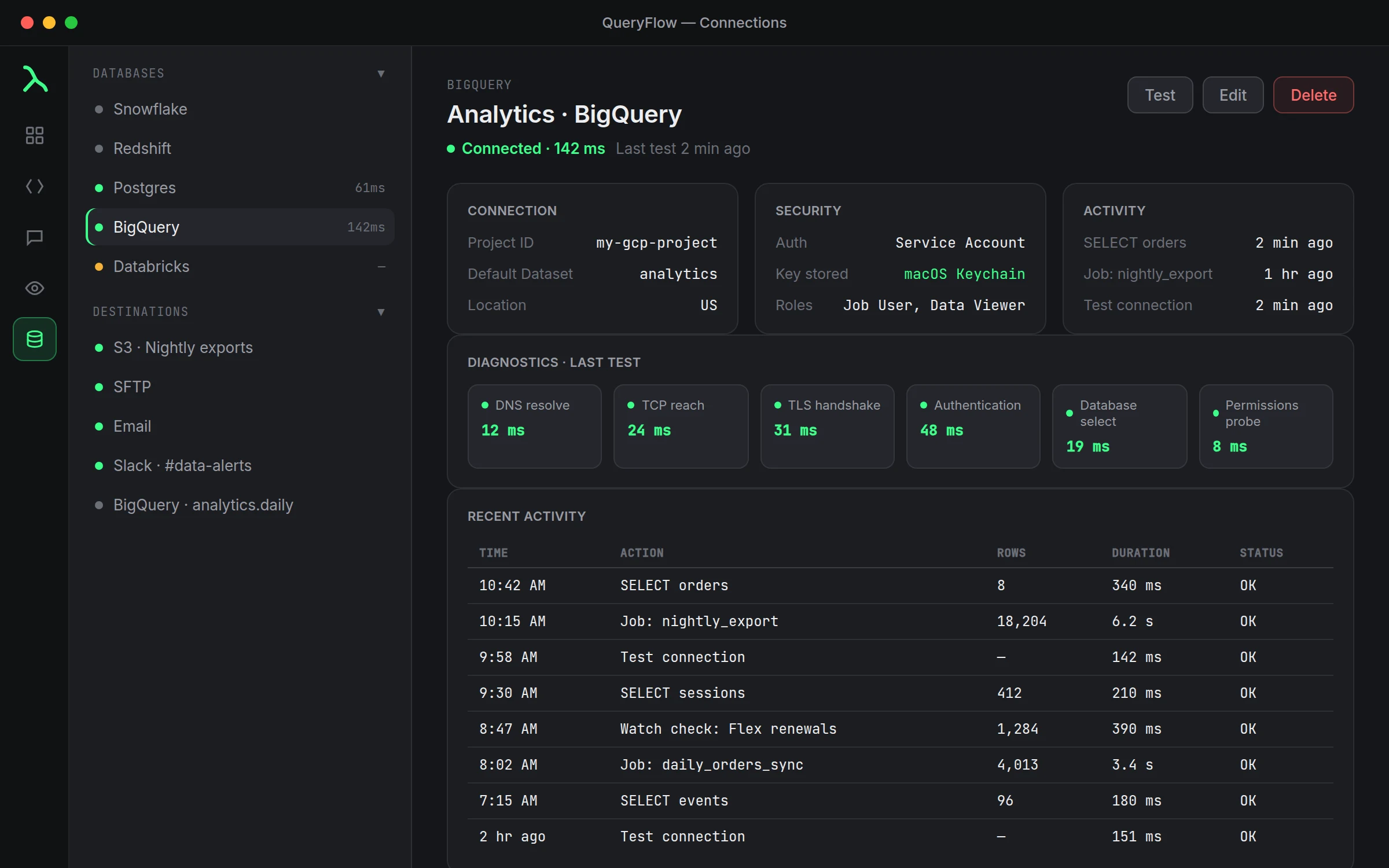
The six diagnostics stages run in order and stop at the first failure, so a red DNS stage means the rest never ran. Fix stages top to bottom rather than jumping to the bottom of the list.
The status dot is worth reading at a glance across a whole sidebar of connections, not just the one you're currently using. Gray means QueryFlow has never run a test against it, which is normal right after adding one but worth clearing before you rely on it in a scheduled job. Red on a connection you haven't touched in weeks usually means an expired token or a rotated password somewhere upstream, not a QueryFlow problem.
Deleting a connection is one of the few destructive actions in the Connections screen, which is why it asks you to confirm first. Once you confirm, the credentials for that connection are removed from the macOS Keychain immediately, not just hidden from the sidebar. If you're planning to re-add the same database later, keep the hostname, username and any token handy before you delete, because none of that carries over.
The Copy as JSON option under Details exists mainly for support requests and bug reports: it captures the full diagnostics run in a structured format that's faster to read through than a screenshot of the panel. Save Diagnostics writes the same information to a file if you'd rather attach it than paste it.
If something goes wrong
| If you see | Fix |
|---|---|
| Can't resolve [host]. | Check the hostname, or connect to your VPN. |
| [host] resolved to IPv6 (::1) only. | Use 127.0.0.1 instead of localhost. |
| TCP reach fails or times out | Check firewall rules, host and port. |
| Authentication stage fails | Re-enter the password or token, and confirm the account has access. |