Before you start
- A Google Cloud project with BigQuery enabled, and its Project ID.
- A Google account with BigQuery access, or permission to create a service account key.
- Any QueryFlow tier. BigQuery is included in Studio.
Steps
- Click the + button next to Databases in the sidebar.
- Select BigQuery from the provider grid.
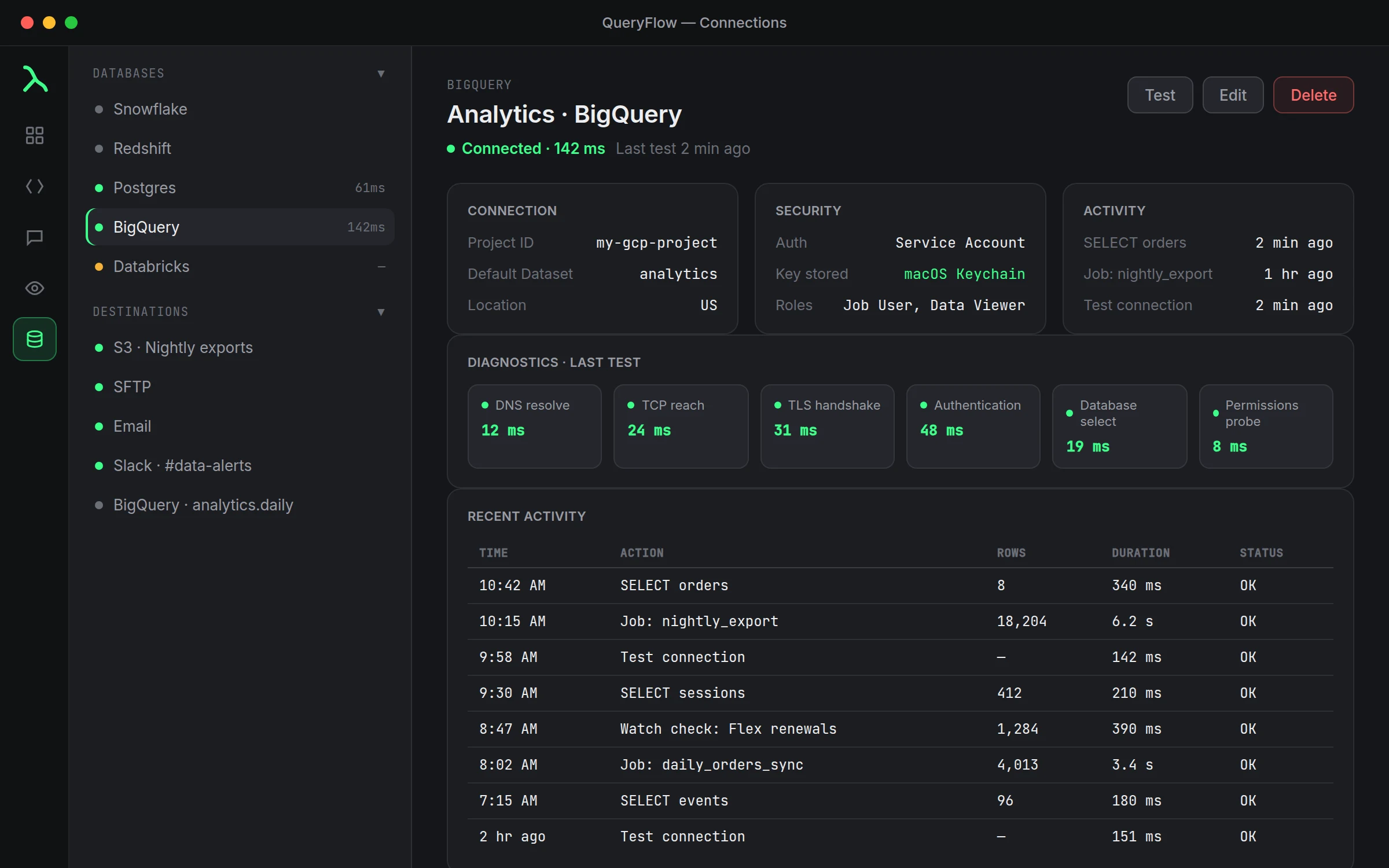
- Enter the Project ID (for example
my-gcp-project). - Optionally fill in Default Dataset and Location (for example
US). - Under Authentication, choose Sign in with Google or Service Account.
- For Sign in with Google: click Sign in with Google and finish the browser sign-in.
- For Service Account: in Google Cloud Console, go to IAM & Admin → Service Accounts → Create Service Account.
- Grant it BigQuery Job User and BigQuery Data Viewer. Add BigQuery Data Editor if you'll write to BigQuery.
- Open the service account, go to Keys, click Add Key → Create new key, choose JSON, and download it.
- Back in QueryFlow, click Choose JSON key… and pick the file, or use Paste JSON instead.
- Click Save.
Check it worked
Click Test. The status dot turns green and the header reads "Connected" with a latency. Open the Explorer tab in the SQL Editor and your datasets should already be listed.
Which method should you pick
Sign in with Google is faster and fine for personal use, your own queries against a project you already have access to. A service account is better when the connection needs to outlive you personally, a scheduled job that should keep running whether or not you're signed in, or a connection a teammate might also need to use. Either way, the credential lands in the macOS Keychain, wiped when you delete the connection.
A note on the first connection you make
The first time you connect any warehouse in QueryFlow, macOS may ask you to confirm network access for the app. That's a standard system prompt, not something specific to BigQuery, and it only appears once. If you're behind a corporate VPN or proxy that restricts outbound traffic, confirm Google's API endpoints are reachable before assuming the connection itself is misconfigured.
What happens after you click Save
Saving doesn't immediately run a test, it just stores the connection. Click Test explicitly to confirm it works before building a scheduled job on top of it. A saved-but-untested connection shows a gray status dot, which is QueryFlow telling you it genuinely doesn't know yet, not a quiet failure.
A second worked check
Once connected, a simple metadata query confirms both access and the right project before you build anything real:
SELECT schema_name
FROM region-us.INFORMATION_SCHEMA.SCHEMATA;
If that returns your datasets, the connection and the roles behind it are both working.
Troubleshooting
| If you see | Fix |
|---|---|
| Not signed in to Google. Click 'Sign in with Google', or add a service account key. | Finish the Google sign-in, or add a service account key. |
| BigQuery denied access. Check roles. | Add BigQuery Job User and Data Viewer in Google Cloud Console. |
| Project or dataset not found. | Re-check the Project ID and Default Dataset spelling. |
| Credentials were rejected. | Sign in again, or re-add the JSON key. |
For the full walkthrough with screenshots of every field, see the Connect Google BigQuery tutorial.
What happens if you switch auth methods later
You can edit an existing connection and switch from Sign in with Google to a service account, or the reverse, without recreating it from scratch. The Project ID, Default Dataset and Location stay put; only the Authentication section changes, and a fresh Test confirms the new method works.
If your organization uses SSO for Google
Sign in with Google follows whatever your organization's Google Workspace already requires, including single sign-on if that's set up. QueryFlow doesn't add a separate login step on top, it's the same browser sign-in flow you'd see anywhere else Google asks you to authenticate.
One more thing worth checking before you leave
Once Test passes, open a fresh SQL tab and run a trivial query, SELECT 1, before closing the connection screen. It confirms the whole path end to end, not just the handshake, and takes about as long as reading this sentence.