Teams as a real destination, not a workaround
A lot of tools treat Microsoft Teams as an afterthought, a generic webhook you configure yourself and hope the formatting survives. QueryFlow 1.6.2 treats Teams the same way it treats Slack: a first-class destination with its own connection screen and cards built for how Teams actually renders messages.
What shows up, and when
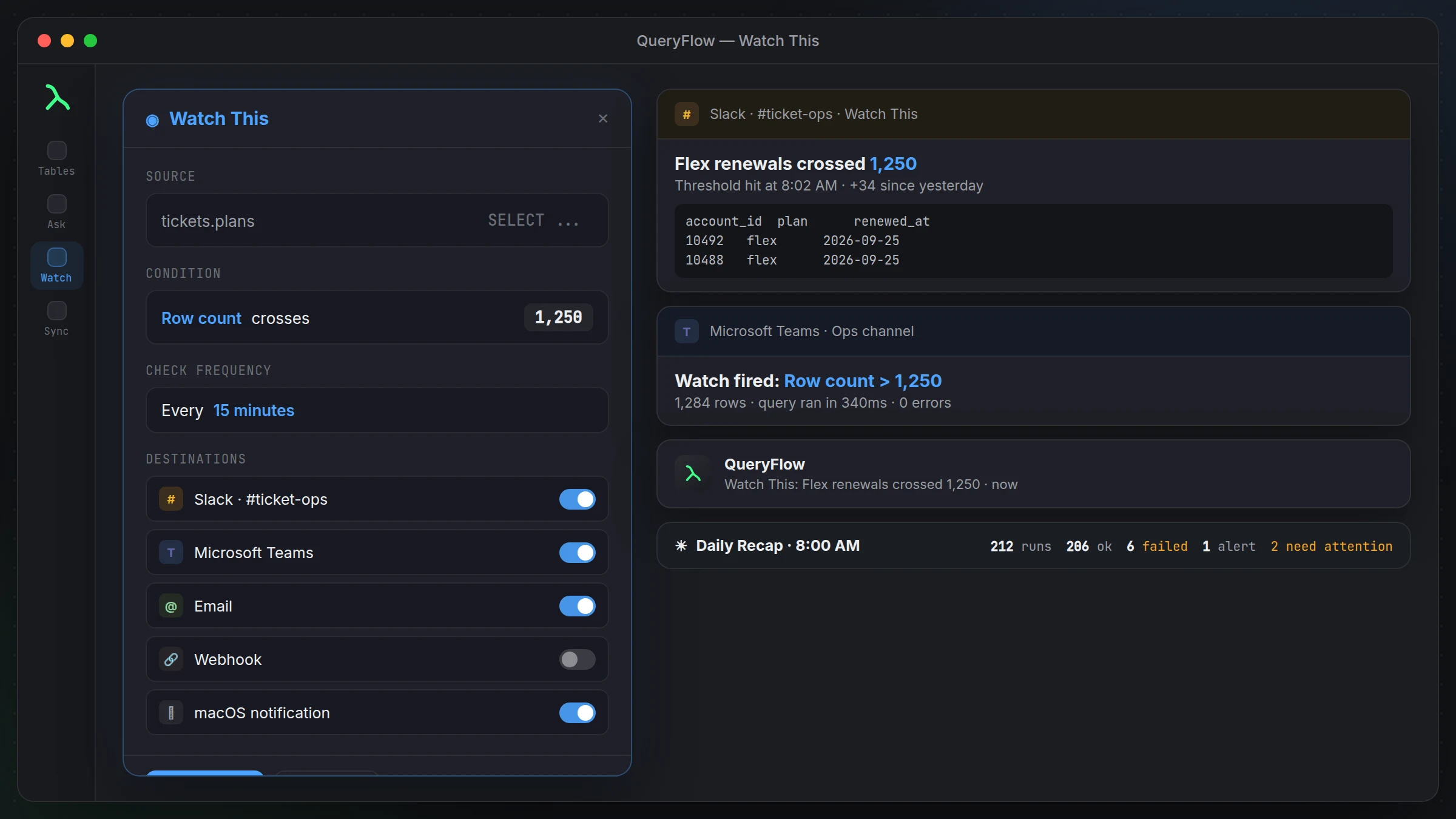
Three kinds of message land in Teams. Job completion cards, sent whenever a scheduled query or pipeline finishes, with the row count, run duration, a preview of the first 10 rows, and any errors. Watch This alerts, sent only when a condition you set actually fires, a row count change, a value change, or a threshold crossed. And the Daily Recap, one summary message every morning at 8 AM covering everything that ran overnight.
A worked example
Say you schedule a Snowflake query every weekday morning that pulls open support tickets by priority:
SELECT priority, COUNT(*) AS open_tickets
FROM support.tickets
WHERE status = 'OPEN'
GROUP BY priority
ORDER BY priority;
Scheduled at 7:45 AM into Teams, the job completion card lands with the row counts by priority before your standup. Add a watch on top with a threshold on the "urgent" priority count, and if that number crosses whatever line your team agreed on, a separate alert card fires the moment it happens, not just at the scheduled time.
Setting up the connection
Connect your Teams channel from Automations settings, then use Send test message before you rely on it. That step matters more than it sounds, formatting between Slack and Teams isn't identical, and it's worth seeing the actual card once before a real alert depends on it looking right.
Both Slack and Teams, if you use both
Some teams run Slack for engineering and Teams for the rest of the company. QueryFlow doesn't force a choice, you can send the same job's completion cards or the same watch's alerts to both destinations if that's how your organization is split.
What this doesn't do
It delivers cards into a channel, it doesn't turn Teams into a place to run new queries or manage your connections. For that you're still in QueryFlow itself. And like any scheduled or watch-based check, delivery happens on the interval you set, it isn't a live stream of every change as it happens.
A second example: a watch alert, not a scheduled job
Job completion cards aren't the only thing Teams gets. Say you set a Watch This threshold on a queue depth metric:
SELECT COUNT(*) AS queued_jobs
FROM ops.job_queue
WHERE status = 'pending';
Set to alert past, say, 200 pending jobs, checked every 15 minutes. On a normal day it stays quiet. The moment the queue backs up past 200, a card lands in your Teams channel with the count and when it was checked, separate from and in addition to whatever scheduled job cards are already going there. The two kinds of message, scheduled and triggered, coexist in the same channel without stepping on each other.
Getting the connection right the first time
Teams channel connections are per-channel, not per-team, so double-check you're pointing at the channel you actually want before you rely on it. It's a common early mistake to connect the wrong channel, send a test message, see it land somewhere you didn't expect, and have to redo the setup. Five minutes checking this upfront saves a confused Slack (or rather, Teams) thread later about why alerts are landing in the wrong place.
If your team splits between Slack and Teams
It's common for engineering to run on Slack while the rest of an organization runs on Teams, or the reverse. QueryFlow doesn't force a single choice, the same scheduled job or watch can point at both destinations if that's what your organization actually needs, so you're not maintaining two separate copies of the same automation just to reach two different channels.
What we'd actually recommend
Start with one destination, whichever channel your team actually reads daily, and get a couple of job cards or watch alerts landing there before you add the second. It's a five-minute setup either way, but seeing the real cards land before wiring up a second destination catches formatting or channel-targeting mistakes while the stakes are still low.
Permissions on the Teams side
Setting up the connection typically needs permission to post into the specific channel you're targeting, which usually means someone with the right role in that Teams workspace needs to approve the connection the first time. If you don't manage the Teams workspace yourself, loop in whoever does before you get to the connection step, rather than discovering the blocker partway through setup.
It's a common early snag and a quick one to avoid once you know to expect it.A note on notification fatigue
A channel that gets a card for every single routine job completion, success or not, tends to get muted within a couple of weeks. Consider sending only failures and watch alerts to a busy shared channel, and reserving full job completion cards, including successes, for a quieter channel or your own direct notifications. QueryFlow doesn't force one pattern here, it's worth deciding deliberately rather than defaulting into noise.
A five-minute conversation with your team about what belongs where saves a lot of muted channels later.