From a result to a standing watch
Run a query, or ask the Ask panel a question, and click Watch this. Pick what should count as a change: the number of rows returned, a specific value in the result, or a threshold you set (alert only when a value crosses above or below it). QueryFlow checks it on the schedule you choose and only notifies you when the condition actually fires.
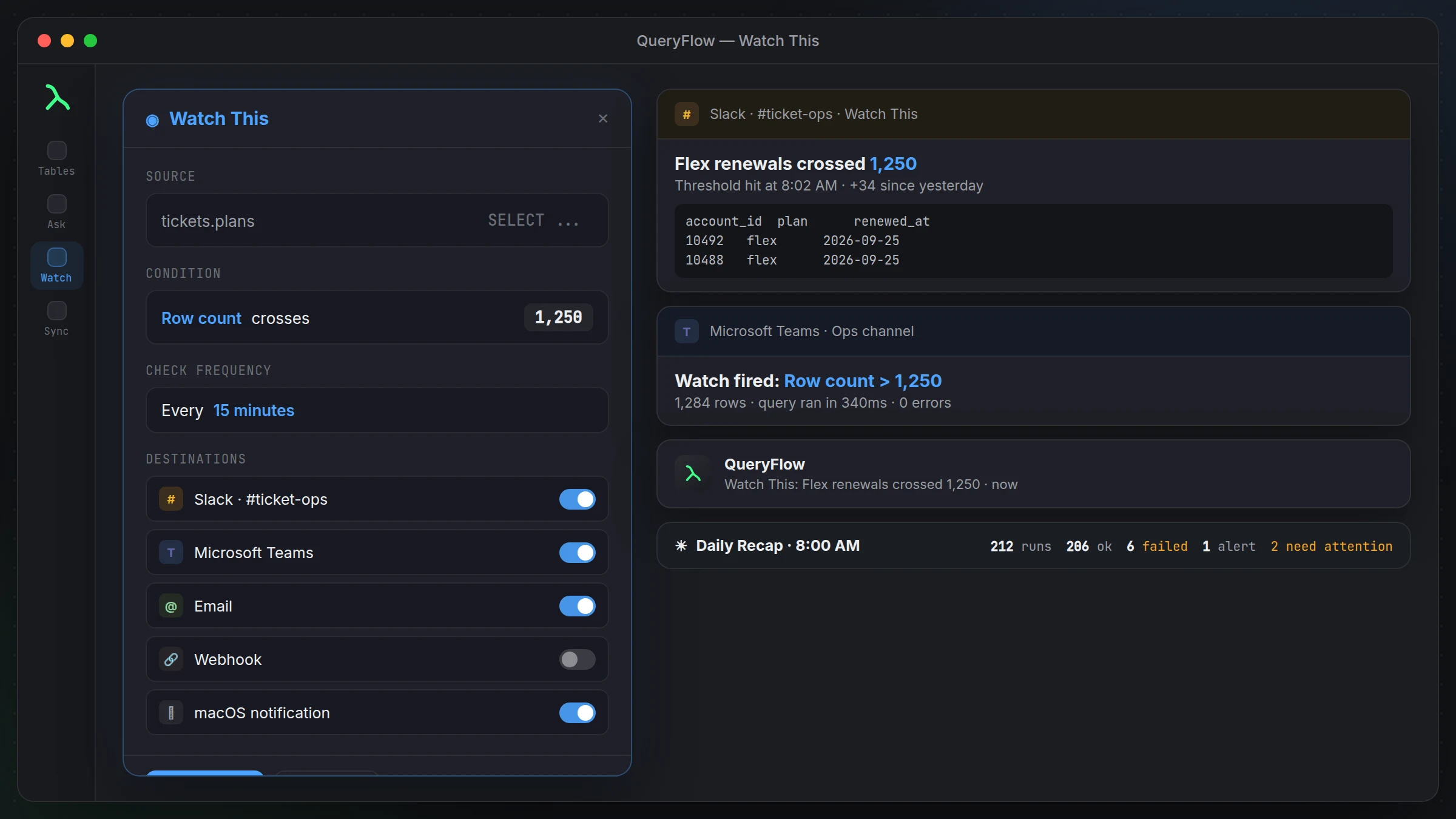
Destinations for the alert
macOS notifications are also available for watches you only want to see on your own Mac. Slack and Teams are first-class destinations in 1.6.2 — connect your workspace once, then click Send test message to confirm the card renders the way you expect before you rely on it.
Job completion cards
When a scheduled job or a watch fires into Slack or Teams, the card includes the row count, how long the run took, a preview of the first 10 rows, and any errors — so the answer is in the channel, not buried in a log you have to open the app to read.
Daily Recap at 8 AM
Turn on the Daily Recap to get one message in Slack or Teams every morning: how many jobs ran, how many succeeded, how many failed, which Watch This alerts fired overnight, and what needs attention. It's the one place to check before your first coffee.
Keeps running while the app is closed
Enable the login-item helper and watches and scheduled jobs keep firing even with the main QueryFlow window closed — as long as your Mac is on and you're logged in. All active watches sit alongside your scheduled jobs in one Automations list, so you see everything running in one place.
Related reading
For every Watch This field explained field by field, see how Watch This works. For a specific trigger, see row count alerts or threshold alerts. Not sure whether you want a watch or a scheduled report? See Watch vs. scheduled job.