The Explorer tab turns a schema you don't fully remember into something you can click through. It works the same for a Postgres database, a Snowflake warehouse, or a BigQuery project, once a table is in front of you the three right-click actions are identical.
Steps
- Open the SQL Editor.
- Click the Explorer tab in the left sidebar.
- Type in Filter… to find a table or column.
- Click a schema or dataset to see its tables, and a table to see its columns.
- Right-click a table and choose SELECT * FROM [table] LIMIT 100.
- Or choose Insert table name, or Copy name.
If the schema won't load, click Retry, or Test the connection first.
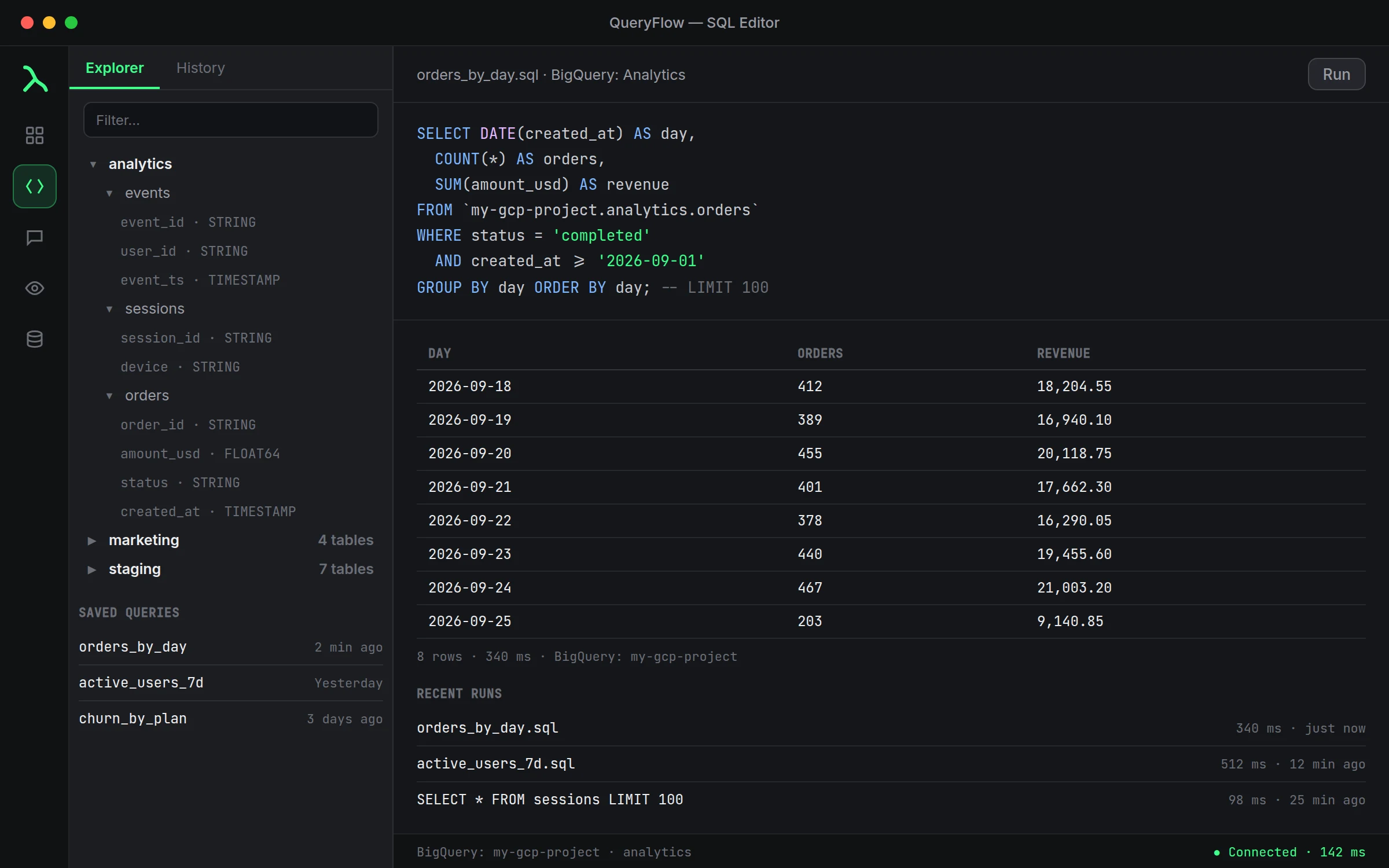
For a BigQuery project the Explorer's three levels are project, dataset and table; for Databricks they're catalog, schema and table. The click path is the same either way.
The Filter field is faster than scrolling once a schema gets past a couple dozen tables, especially on a warehouse where someone else named things. Type part of a table or column name and the tree narrows to matches, which is usually quicker than remembering whether the table you want is called fact_orders, orders_fact or just orders.
The generated SELECT * FROM [table] LIMIT 100 exists specifically so you don't run an unbounded query against a table you've never looked at before. On a warehouse billed by data scanned, like BigQuery, or one with genuinely large tables, that LIMIT is doing real work: it caps what comes back while you're still figuring out what the table even contains. Widen or remove it once you know the shape of the data.
Insert table name and Copy name are for when you already know roughly what you want to write and just need the fully qualified name without a typo. Both give you the exact name QueryFlow sees, backtick-quoted for BigQuery or dot-separated for the rest, which matters more than it sounds like the first time a query fails because a schema name had different capitalization than you assumed.
If the schema tree stays empty after you expand a dataset or catalog, that's usually a permissions gap rather than a broken connection: the account can log in but hasn't been granted visibility into that particular dataset. Retry re-runs the listing call, which is worth trying once in case it was a transient timeout, but if it comes back empty every time, go check what the account can actually see before assuming QueryFlow is at fault.
None of this requires the connection to already have a query open. Explorer works the moment a connection is green, before you've written a single line of SQL against it, which makes it the natural first stop on any warehouse you're new to, whether you just connected it yourself or inherited it from a teammate.