Before you start
A working Salesforce connection and a working BigQuery connection under Databases, and an existing BigQuery target table with the columns you're syncing into. Pipelines tier.
Steps
- Open Pipelines → Build and click New Sync.
- On the left, pick your Salesforce Connection and object (or write SOQL).
- On the right, pick your BigQuery Connection and target Table.
- Drag from a source field to a target field, or click AI Map.
- Pick a MODE: Insert, Update, or Upsert.
- For Update or Upsert, choose a MATCH ON field, usually the Salesforce record ID.
- Click Dry Run, then Save it as a job or run it now.
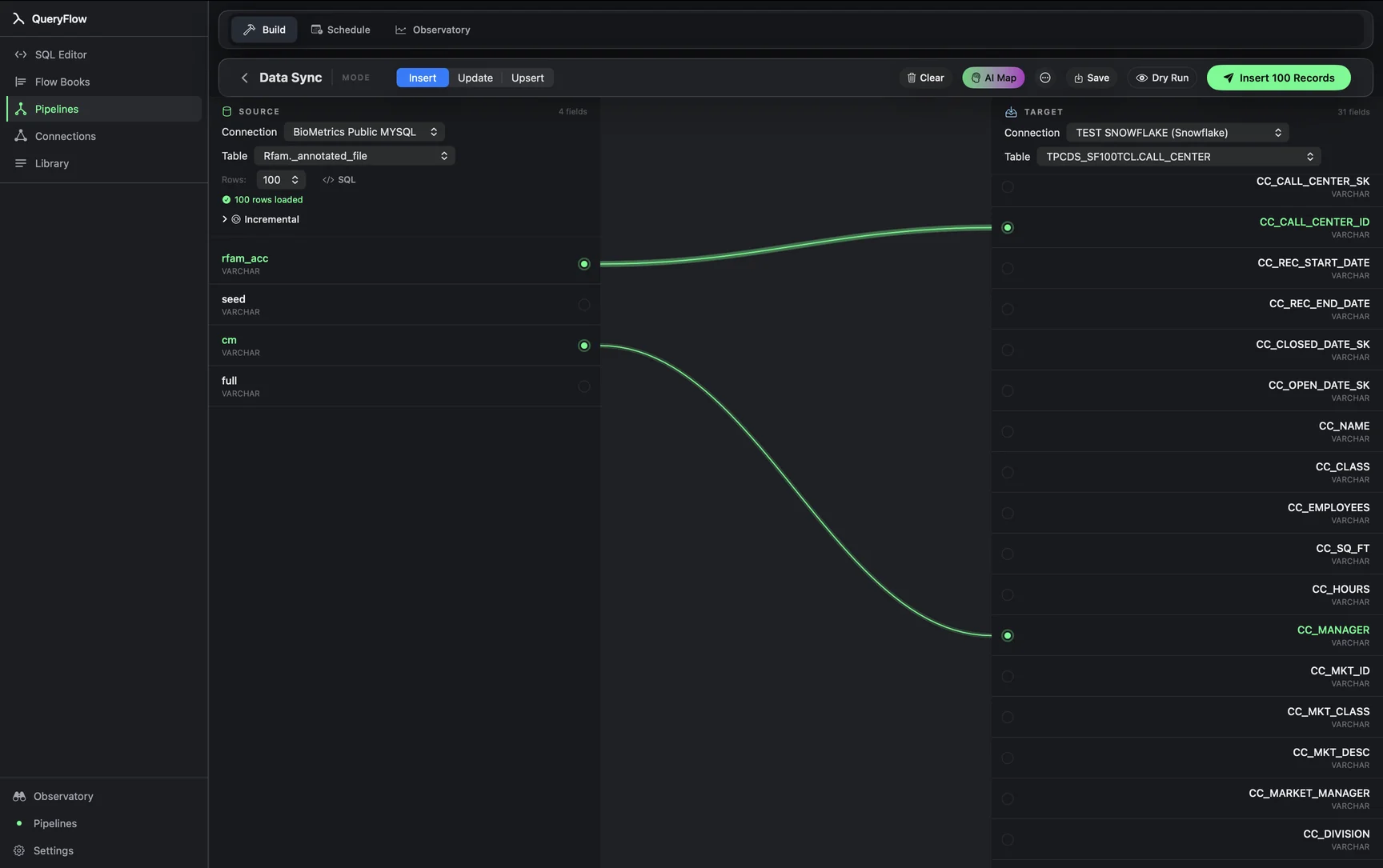
A worked example
Syncing Opportunity records into a BigQuery table analysts already query against product usage:
SELECT Id, AccountId, Amount, StageName, CloseDate
FROM Opportunity
WHERE LastModifiedDate = TODAY;

-- BigQuery target: my-gcp-project.crm.opportunities
Map Id to an opportunity_id column, the rest to their matching fields, and pick Upsert on opportunity_id. Every opportunity touched today, whether brand new or just moved a stage, lands in BigQuery in the same run.
Check it worked
Dry Run first, then check the run history for a live run and spot-check a handful of records in BigQuery against Salesforce directly.
Troubleshooting
| If you see | Fix |
|---|---|
| No BigQuery connections available | Add a BigQuery connection under Databases first. |
| Job fails on write | Give the BigQuery account or service account BigQuery Data Editor on the target dataset. |
| Choose at least one key field | Pick a MATCH ON column, typically the Salesforce record Id, for Update or Upsert. |
SOQL versus picking an object directly
For a straightforward full-object sync, picking the object directly in the source picker is simpler than writing SOQL by hand. SOQL earns its place once you need a filter beyond what the picker offers, a specific date range, a WHERE clause on a custom field, or a join across related objects that Salesforce's query language supports. Start with the picker, and drop into SOQL only once you hit its limits.
Handling Salesforce's custom fields
Custom fields in Salesforce carry a __c suffix (Region__c, for instance), which AI Map handles fine as long as the target column name is reasonably close. For a custom field mapped to a target column with a very different name, expect to drag that particular line by hand rather than relying on the automatic match.
Deleted and closed-lost records
Salesforce doesn't hand back deleted records through a normal query, and depending on your sync's filter, a closed-lost Opportunity might stop matching a "recently modified" window even though it still exists. If a BigQuery table needs to reflect closed or deleted records rather than only currently active ones, that needs to be built into the source query's filter explicitly, since Data Sync itself has no separate concept of "also sync deletions."
Rate limits on large Salesforce orgs
A very large Salesforce org can hit API rate limits on a sync that pulls a wide date range or a large object in one pass. Narrowing the source query's filter, syncing incrementally rather than the whole object every run, is the usual fix, and it has the added benefit of making each run faster once it's no longer re-reading records that haven't changed.
Joining Salesforce with usage data downstream
The usual reason to land Salesforce data in BigQuery specifically is to join it against something Salesforce itself can't see, product usage events, billing records, support tickets, that already lives in the warehouse. Once Opportunity or Account records are sitting in BigQuery next to that other data, questions like "which accounts with high product usage haven't been contacted in 60 days" become a single query instead of a manual cross-reference between two systems.
Keeping the sync narrow at first
It's tempting to sync every Salesforce object at once. Starting with the one or two objects (Opportunity and Account are the usual first choices) that actually answer the question prompting the project keeps the initial build small enough to trust quickly, and adds the rest only once the pattern has proven itself on real data.
Full builder walkthrough: the Data Sync tutorial.
Related syncs
See also: Integrations Load a CSV into BigQuery on Mac Sync Databricks to BigQuery.