Before you start
A working Databricks connection and a working Snowflake connection under Databases, and an existing Snowflake target table with the right columns. Pipelines tier.
Steps
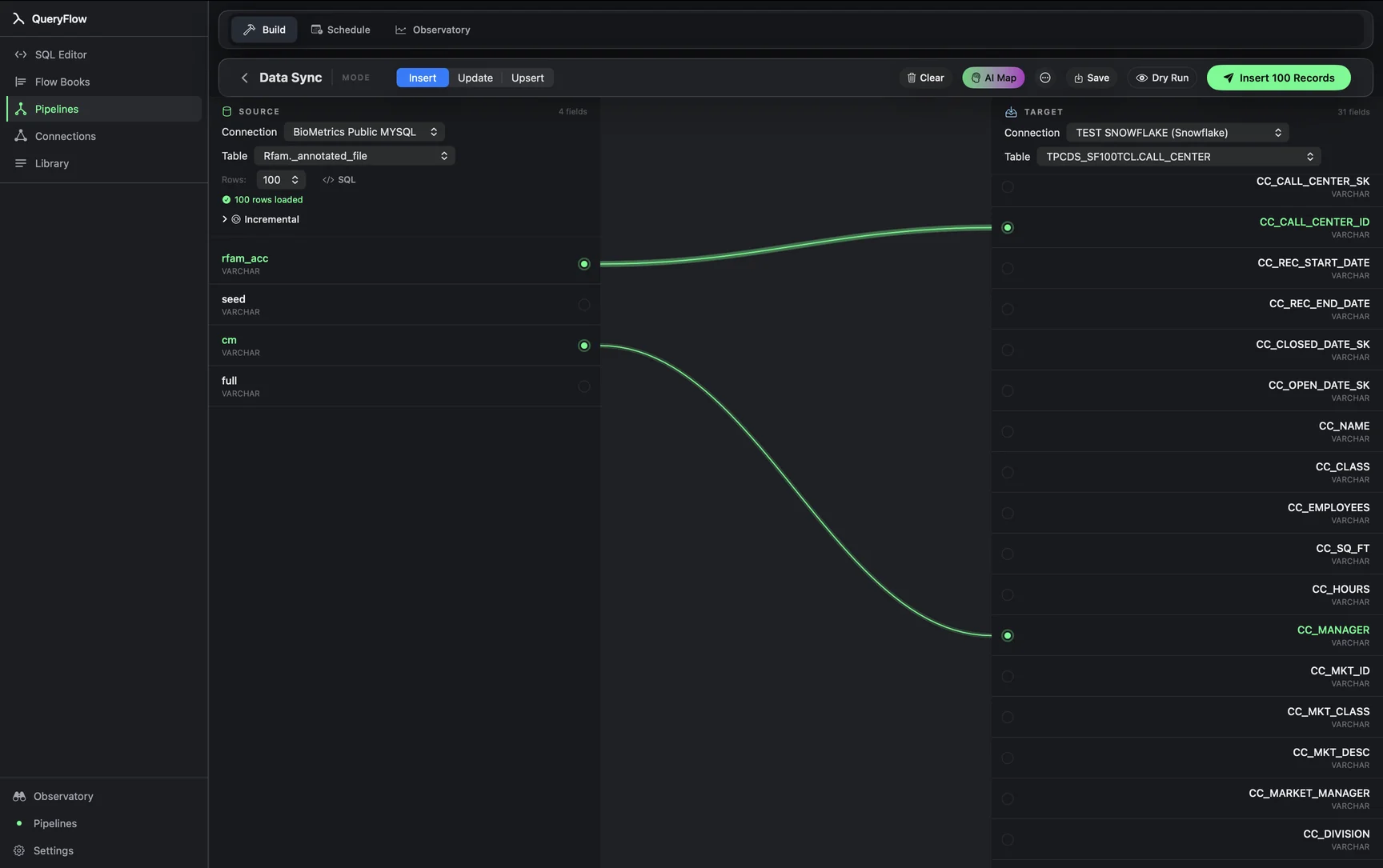
- Open Pipelines → Build and click New Sync.
- On the left, pick your Databricks Connection and Table (or write SQL).
- On the right, pick your Snowflake Connection and target Table.
- Drag from a source field to a target field, or click AI Map.
- Pick a MODE: Insert, Update, or Upsert.
- For Update or Upsert, choose a MATCH ON field.
- Click Dry Run, then Save it as a job or run it now.
A worked example
A transformed customer-lifetime-value table, computed in Databricks, syncing into a Snowflake table the BI team's dashboards actually query:
-- Databricks source
SELECT customer_id, lifetime_value, last_computed_at
FROM analytics.models.customer_ltv;

-- Snowflake target: warehouse.public.customer_ltv
Map the three columns, pick Upsert on customer_id, and this becomes a nightly job: every customer's latest LTV lands in Snowflake, existing rows update in place, and new customers insert without a separate step.
Check it worked
Dry Run first to confirm the counts, then check the sync's run history after a live run and spot-check a few rows directly in Snowflake against the Databricks source.
Troubleshooting
| If you see | Fix |
|---|---|
| No Databricks connections available | Add one under Databases first (see connecting Databricks). |
| Job fails on write | Give the Snowflake role INSERT/UPDATE privileges on the target table's schema. |
| Records synced, with errors listed | Usually a type mismatch between a Databricks column and its Snowflake counterpart; check the listed error. |
Why this direction, specifically
Databricks to Snowflake is a common direction because Databricks often does the heavy transformation work (joining, aggregating, feature-building) while Snowflake serves as the warehouse the rest of the company's BI tools already point at. Rather than re-pointing every dashboard at Databricks, or duplicating the transformation logic in Snowflake itself, syncing the finished result across is usually the smaller lift.
Column type differences to expect
Databricks and Snowflake don't share identical type systems. A Databricks DECIMAL column and a Snowflake NUMBER column are close enough to map directly in most cases, but a Databricks ARRAY or STRUCT column has no direct Snowflake equivalent and needs to be flattened or serialized on the Databricks side before syncing. If a mapping fails with a type error, checking whether the source column is a nested type is usually the fastest place to start.
A note on Unity Catalog
If the Databricks source uses Unity Catalog, reference the source table as catalog.schema.table rather than just schema.table. The connection's catalog setting (configured when you add the connection, or left blank to browse the default) determines what the source picker shows; a table that seems to be missing is often just sitting under a catalog the connection isn't currently pointed at.
Keeping both warehouses honest
A sync running on a schedule can quietly drift from correct if the source query's logic changes but the target table's expectations don't get updated to match, or the reverse. Periodically comparing a row count or a spot-checked aggregate between the Databricks source and the Snowflake target, even just monthly, catches that kind of drift before it becomes a trust problem for whoever reads the Snowflake side.
Warehouse sizing on the Databricks side
The SQL warehouse behind a Databricks connection needs to actually be running (or set to auto-start) when a scheduled sync fires. A warehouse that's scaled to zero and takes a minute or two to spin up adds that delay to the start of every run; for a time-sensitive sync, keeping the warehouse warm or accepting the startup delay in the schedule's timing are the two practical options.
Snowflake warehouse state matters too
The same consideration applies on the Snowflake side of this pairing: a suspended warehouse resumes automatically on the first query, but that resume adds a few seconds of latency to the run. For a sync scheduled every few minutes, an auto-suspend timeout set too aggressively can mean nearly every run pays that resume cost, which is worth checking if a normally-fast sync seems consistently slower than expected.
Full builder walkthrough: the Data Sync tutorial.
Related syncs
See also: Integrations Sync BigQuery to Snowflake CSV to Snowflake on Mac.