What you get
- Any query, on a schedule — interval, daily, weekly, or a full cron expression, no separate scheduler to run.
- Nine sources, one scheduler — Snowflake, Redshift, Postgres, MySQL, BigQuery, and Databricks all use the same Schedule dialog.
- Runs without you: with the background helper on, the right jobs keep firing while your Mac is closed.
How it works
Write or open a query in the SQL Editor, click Schedule, and set a Trigger Type and time. Choose an output: No Output if you just want a run history, Save to File or Email on Studio, or on Pipelines, SFTP, Amazon S3, a Database, Google Sheets, Slack, or Microsoft Teams. Turn on Enable immediately and click Create Job.
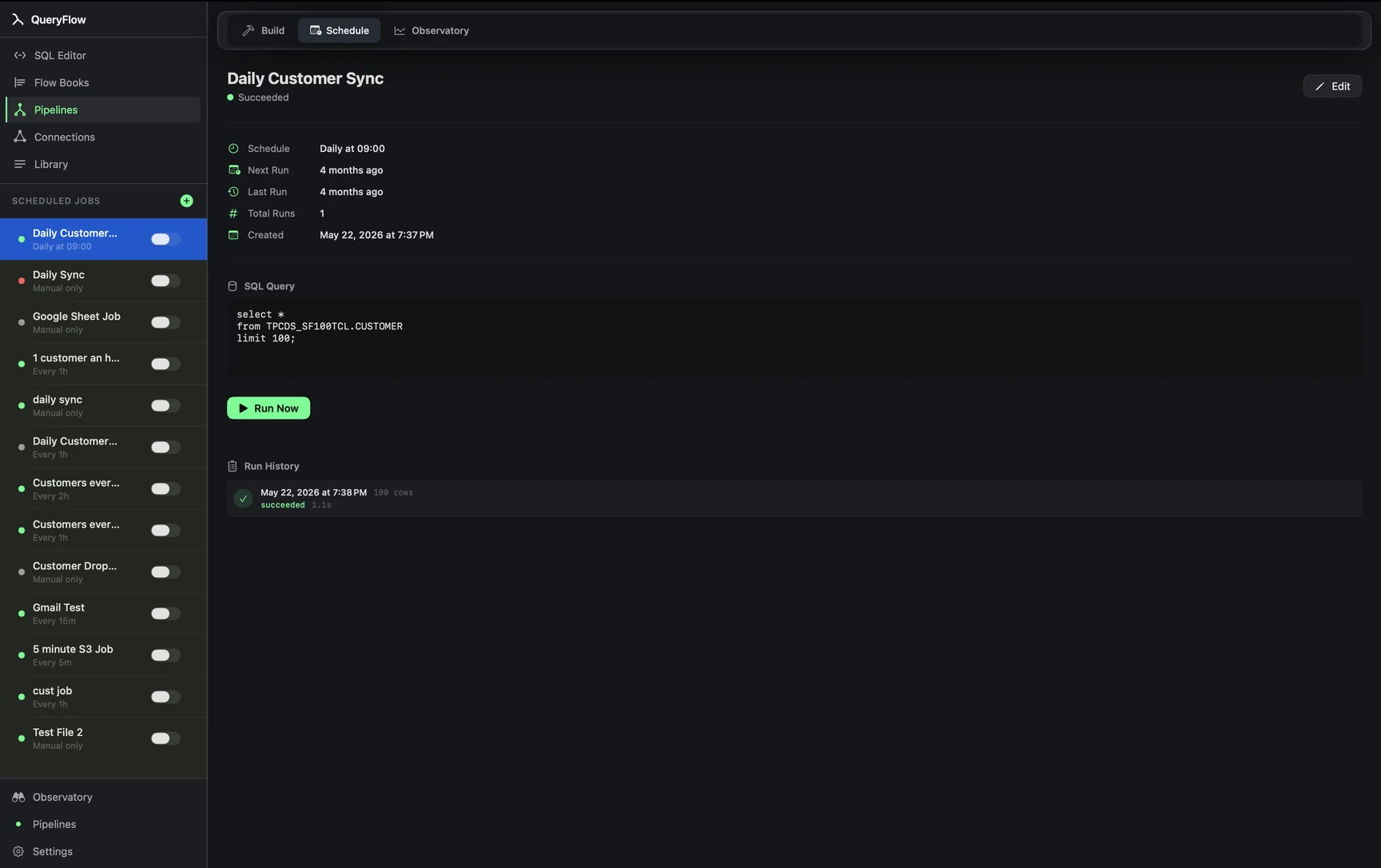
Say you run a BigQuery cost check every hour and only want to hear about it when it moves. You'd write something like:
SELECT project_id, SUM(total_bytes_billed) / POW(10, 12) AS tb_billed
FROM `my-gcp-project.region-us`.INFORMATION_SCHEMA.JOBS_BY_PROJECT
WHERE creation_time >= TIMESTAMP_SUB(CURRENT_TIMESTAMP(), INTERVAL 1 DAY)
GROUP BY project_id;
Schedule that hourly with a Slack destination (Pipelines), or every hour to a file if you're on Studio and just want the CSVs piling up in a folder for later review.
What runs with the app closed
Turn on Run Jobs When App Is Closed under Settings → Scheduling, and macOS approves QueryFlow's background helper as a login item. That helper runs Snowflake, Redshift (with IAM key auth), BigQuery, and Databricks jobs whose output is S3, SFTP, a local file, or email. A job with a Postgres or MySQL source, or one delivering to a database table, Google Sheets, Slack, or Teams, needs QueryFlow open and running. It's a specific list, not a general "runs in the background" promise, and it's worth checking your own job against it before assuming it'll fire overnight.
Studio vs Pipelines
Every tier gets the scheduler itself, all five trigger types, and unlimited jobs. Studio caps output at Save to File and Email. Pipelines adds SFTP, Amazon S3, writing straight into a BigQuery or Databricks table, Google Sheets, Slack, and Microsoft Teams. See pricing for the full breakdown.
What it isn't
This isn't a distributed job orchestrator. There's no DAG view, no cross-job dependency graph, and no cluster to scale out to. If you need thousands of interdependent tasks with retries fanning out across workers, that's Airflow or Dagster territory. QueryFlow's scheduler is built for the much more common case: a person who wants a handful of queries to run themselves, on a Mac that's usually on.
Picking a trigger type
Manual is for jobs you want to run on demand but still track in the run history, useful for a query you re-run often enough that you want its history kept alongside the automated ones. Interval fits anything that needs to run every N minutes or hours regardless of the clock, like a cost check that should fire every 30 minutes during business hours. Daily and Weekly cover the most common case: a report that goes out at the same time, on the same days, indefinitely. Custom Cron is there for anything the other four don't quite express, like "the second Tuesday of the month" or a weekday-only schedule with an odd start time.
A second worked example: Redshift with IAM keys
Redshift jobs qualify for the background helper specifically when they authenticate with IAM keys rather than a username and password. A Redshift connection set up with a database username and password still schedules and runs fine, it just needs QueryFlow open at the trigger time, the same as a Postgres or MySQL job. If keeping a job running with the Mac closed matters to you, that's worth checking before you assume a Redshift job qualifies.
Where the scheduler fits next to Watches and Data Sync
The scheduler, Watches, and Data Sync all sit on the same underlying trigger machinery, but answer different questions. The scheduler answers "run this query and put the result somewhere, on a timer." A Watch answers "tell me the moment this specific number changes," without needing a full job built around it. Data Sync answers "keep this target table in step with this source table." A query that just needs to run and land somewhere belongs in the scheduler; a single number you want to keep an eye on belongs in a Watch instead.
Starting small
The easiest way into the scheduler isn't to plan out every job you'll eventually want. Pick one query you already run by hand more than once a week, schedule that one, and watch its run history for a few days. Once you trust the pattern (right trigger time, right output, no surprises after a sleep cycle), adding the next job is a five-minute repeat of the same steps rather than a bigger project.