Before you start
At least one scheduled job, and macOS 15 or later (SMAppService, the framework this runs on, needs it). No particular tier is required for the toggle itself, but the job's output still follows the Studio/Pipelines split below.
Steps
- Write or open your query in the SQL Editor.
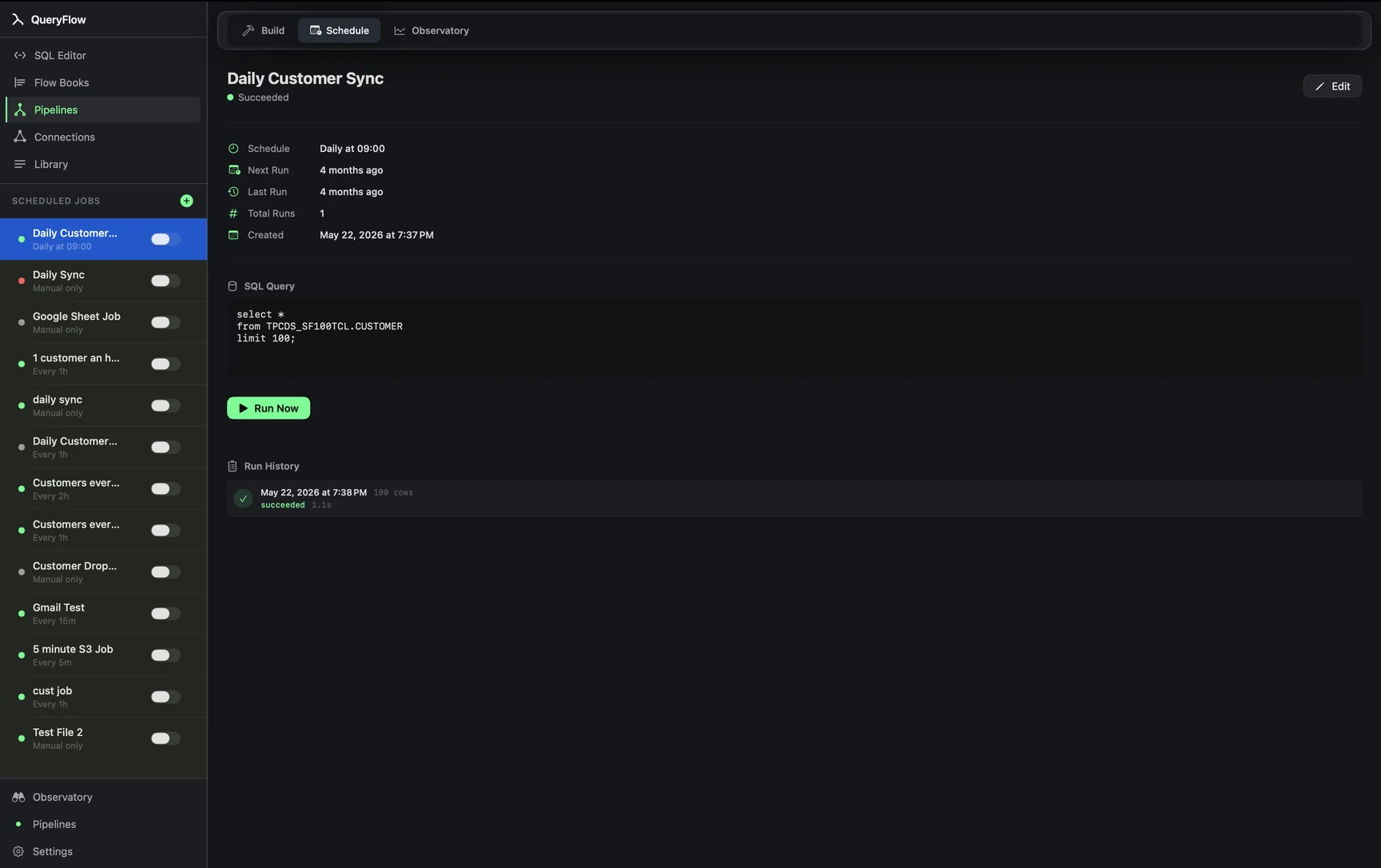
- Click Schedule in the toolbar.
- Pick a Trigger Type: Manual, Interval, Daily, Weekly, or Custom Cron, and set the time.
- Choose where results go: No Output, Save to File, Email, or on Pipelines SFTP, Amazon S3, Database, Google Sheets, Slack, or Microsoft Teams.
- Turn on Enable immediately and click Create Job.
- Open Settings → Scheduling and turn on Run Jobs When App Is Closed.
The exact list, not a general promise
With the toggle on, the background helper runs jobs built from these sources: Snowflake, Redshift using IAM keys, BigQuery, and Databricks. It delivers to these outputs: Amazon S3, SFTP, a local file, or email. A job matching both lists keeps firing with QueryFlow closed. A job outside either list, say a MySQL source, a Redshift connection using a username and password instead of IAM keys, or a job writing into a Database or Google Sheets destination, only runs while QueryFlow is open and awake on your Mac.
Worked example: a BigQuery query scheduled hourly, delivering to S3, qualifies on both counts and keeps running with the app closed. The same query delivering to a Slack channel does not, because Slack isn't one of the background helper's outputs, Pipelines tier or not.
Check it worked
Quit QueryFlow entirely (not just close the window; actually quit it from the Dock or ⌘Q). Wait past your job's next scheduled time, then relaunch QueryFlow and check the job's run history. A successful run recorded while the app was closed confirms the helper fired on its own.
Troubleshooting
| If you see | Fix |
|---|---|
| Job doesn't run while the app is closed | Check the source and output are both on the helper's list above. |
| macOS needs your approval to keep this running in the background. | Click Open Login Items Settings… and approve the helper. |
| Job fails immediately | Open its run history. It's usually the same error a connection Test would show. |
Why the list is specific, not general
It would be simpler to say "everything runs in the background," but that's not how the helper works, and a page that claimed it would set the wrong expectation for a job you're depending on. The four qualifying sources (Snowflake, Redshift with IAM keys, BigQuery, Databricks) and four qualifying outputs (S3, SFTP, local file, email) are the combinations the background helper actually supports today. A job outside that matrix, a MySQL source, or output to a warehouse table, Sheets, Slack, or Teams, still runs correctly, just only while QueryFlow itself is open and awake.
Keeping QueryFlow open as the alternative
For a job outside the helper's list, the practical workaround is simply leaving QueryFlow running, the same way you'd leave any Mac app open to keep a background task alive. On a machine that's already on most of the time, like a Mac mini used for exactly this kind of thing, this is a small ask. On a laptop you close every night, it's worth checking each job against the two lists above before assuming it'll fire while you're away from the keyboard.
macOS and login items
Turning the toggle on registers QueryFlow's helper with SMAppService, Apple's current framework for background services and login items. macOS treats this the same way it treats any other login item: it asks for your approval once, and you can review or revoke it later under System Settings → General → Login Items & Extensions. If you ever want the background helper gone entirely, revoking it there stops it immediately, and any job depending on it will need QueryFlow open again to run.
A Mac mini as the practical answer
For jobs that need to survive not just the app being closed but the whole laptop being closed, a dedicated always-on Mac, even an older Mac mini repurposed for the job, with auto-login and QueryFlow set to reopen on login, gets closer to 24/7 behavior than any laptop will. It's not a server in the traditional sense, but for the scale most of these jobs run at, it's a reasonable and inexpensive way to get there.
See the full scheduling tutorial for the rest of the Schedule dialog.