One warehouse, more than one way to reach it
Your SQL Warehouse already serves your BI dashboards and probably the Databricks browser editor too. QueryFlow is another way to reach the same warehouse, a native one, that doesn't tie you to a browser tab and doesn't reload your session when you step away for an hour.
What you get
- Direct warehouse connection. Paste the Server Hostname and HTTP Path once; QueryFlow finds the warehouse for you.
- Unity Catalog browsing. Catalogs, schemas and tables load in the sidebar the way Databricks itself organizes them.
- A native SQL editor and Ask panel. Write SQL with autocomplete on real table names, or describe what you want in plain English.
How it works
1. Grab the details. In Databricks, open SQL Warehouses, pick yours, and open Connection details. 2. Connect. Paste the hostname and HTTP path into a new Databricks connection in QueryFlow. 3. Query. Browse the catalog and run SQL against the same warehouse your other tools use.
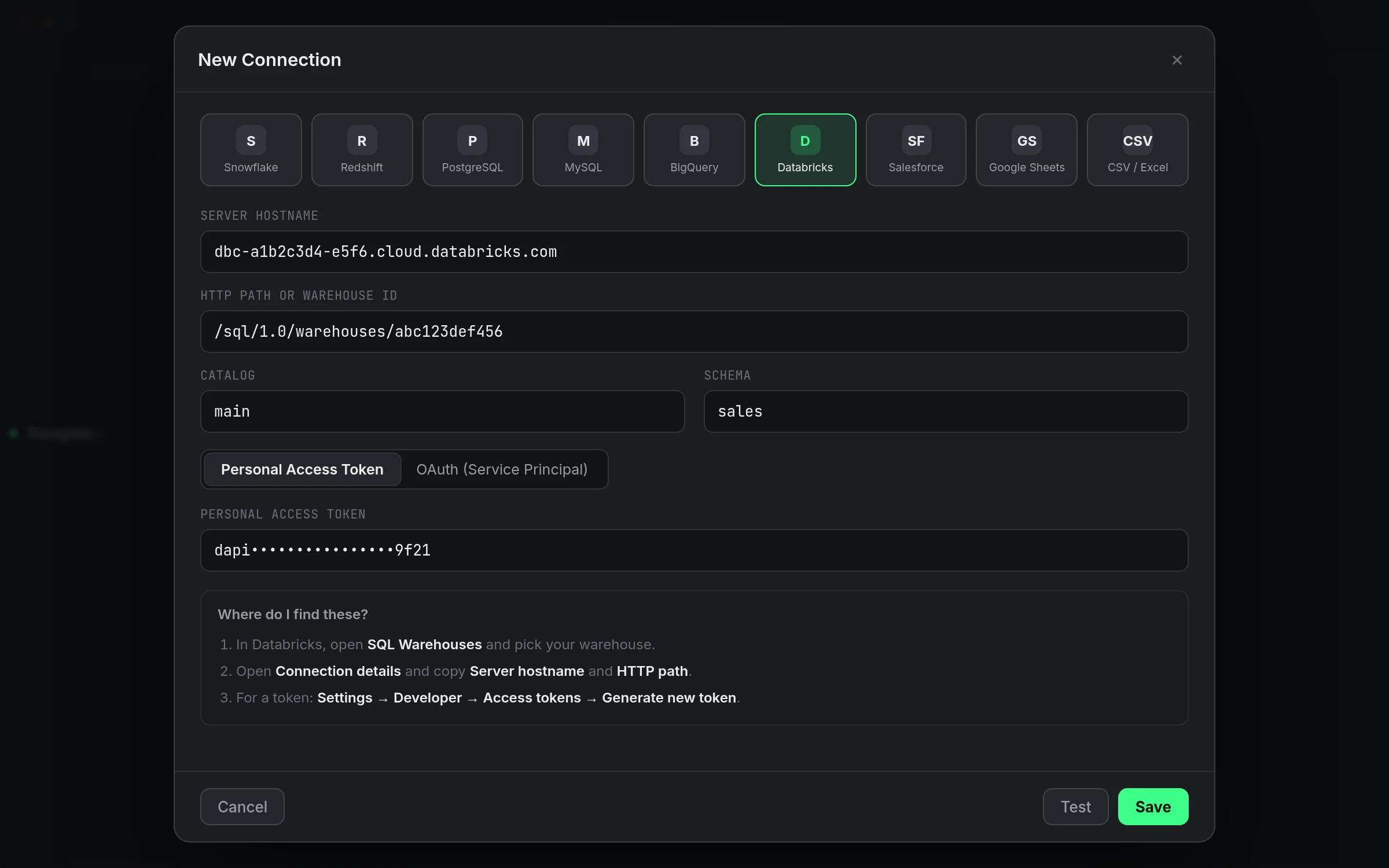
A worked example
Checking warehouse-level query volume, something you might otherwise dig for in a usage dashboard:
SELECT date(start_time) AS query_date, count(*) AS query_count
FROM system.query.history
WHERE start_time >= current_date() - interval 7 days
GROUP BY query_date
ORDER BY query_date;
Run it once in the editor, or Schedule it if you want that number in your inbox every Monday.
One warehouse, many endpoints
Nothing about connecting through QueryFlow changes how the warehouse behaves for your other tools. It's the same compute, the same access controls, just another client hitting it, one that happens to stay open when your laptop sleeps and doesn't reload the page every hour.
Studio vs. Pipelines
The editor, explorer and Ask panel are Studio. Scheduling this warehouse's queries and syncing its results elsewhere are Pipelines. See pricing.
What this doesn't do
It doesn't manage the warehouse itself, starting, stopping or resizing it. That's still a Databricks admin task. QueryFlow just queries whatever's running.
If the warehouse serves more than one team
A shared SQL warehouse doesn't care which client is querying it, QueryFlow, a BI tool, or the browser editor all show up as the same kind of load. If query performance matters and several tools hit the warehouse at once, that's a sizing and concurrency conversation with whoever administers it, not something a specific client changes.
A worked check on warehouse identity
Before scheduling anything against a shared warehouse, confirm you are pointed at the one you think you are:
SELECT current_catalog(), current_schema();
A quick check like that costs nothing and catches the occasional case of two similarly named warehouses in the same workspace.
Cheap insurance, in other words, against a mistake that is otherwise easy to make and annoying to trace back.
When to just ask instead of clicking through
If you're not sure which catalog holds what you need, the Ask panel can answer that faster than manually expanding the explorer tree level by level, describe roughly what you're looking for and it will point you at likely tables based on names and structure it can see.
A note on warehouse sizing while you explore
Casual exploration, browsing the catalog, running small sample queries, doesn't need a large warehouse. If your organization sizes warehouses by workload, exploratory work through QueryFlow is a reasonable fit for a smaller, cheaper one, saving the larger warehouse for the heavier scheduled jobs.
A quick habit worth building here too
Before pointing a schedule at this warehouse, run the query manually once and sanity-check the row count. A wrong catalog or an incomplete filter is much easier to catch in that one manual run than after it's been quietly returning the wrong numbers every morning for a week.
One more thing worth checking before you leave
Once Test passes, open a fresh SQL tab and run SELECT 1 before closing the connection screen. It confirms the whole path end to end, not just the initial handshake.
If more than one warehouse serves the same data
Some organizations run a small warehouse for ad hoc work and a larger one for scheduled jobs, both pointed at the same catalogs. If that's your setup, a QueryFlow connection per warehouse keeps casual queries off the warehouse your nightly jobs depend on.