Before you start
- A running Databricks SQL Warehouse.
- A personal access token, or a service principal's Client ID and Client Secret.
- Any QueryFlow tier. Databricks is included in Studio.
Steps
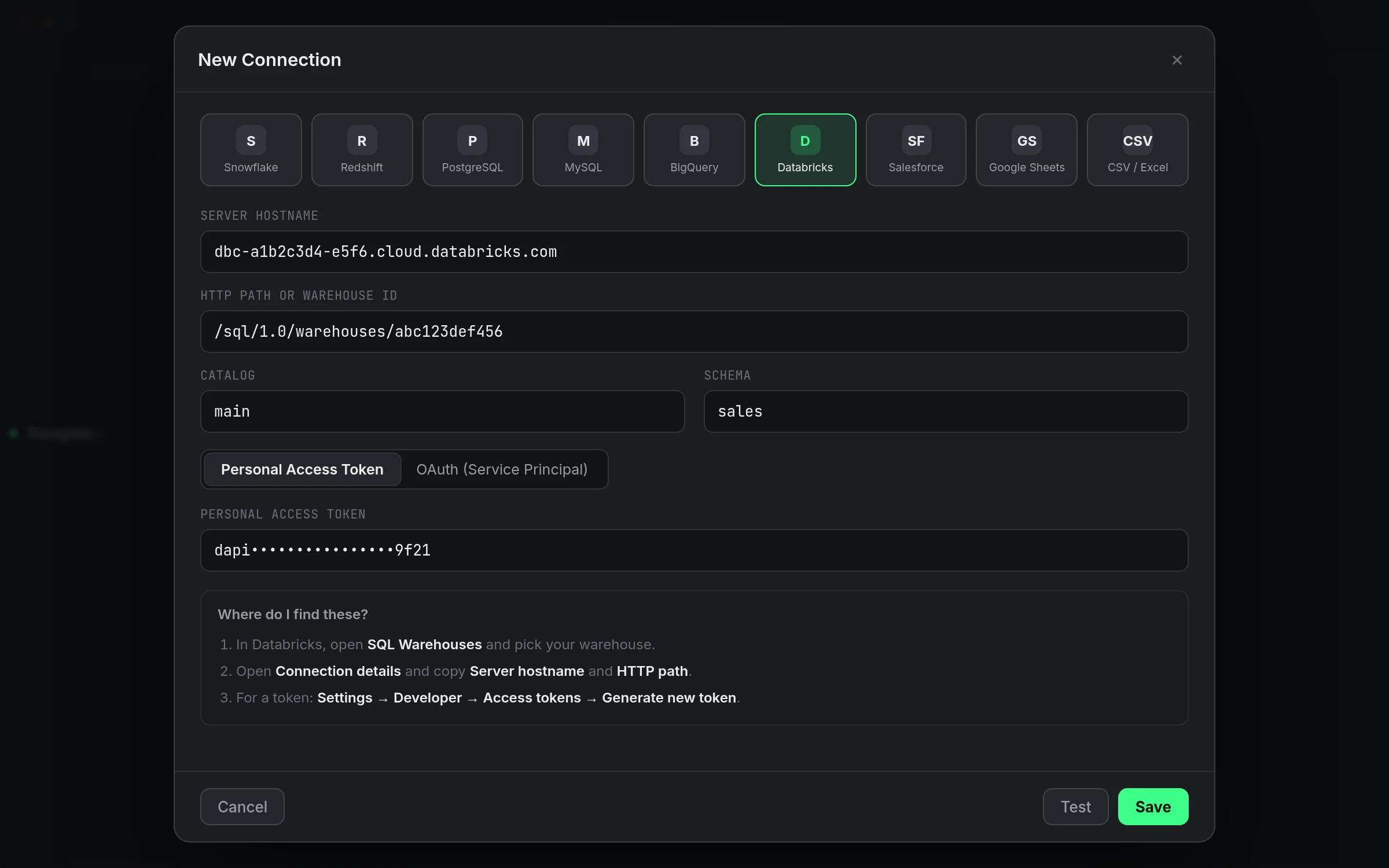
- Click the + button next to Databases in the sidebar.
- Select Databricks from the provider grid.
- In Databricks, open SQL Warehouses, pick your warehouse, and open Connection details.
- Copy Server hostname into Server Hostname.
- Copy HTTP path into HTTP Path or Warehouse ID. A full URL works too.
- Optionally fill in Catalog and Schema.
- Under Authentication, choose Personal Access Token or OAuth (Service Principal).
- For a token: in Databricks go to Settings → Developer → Access tokens, click Generate new token, and paste it into Personal Access Token.
- For a service principal: paste its Client ID and Client Secret.
- Click Save.
Check it worked
Click Test. The status dot turns green and the header reads "Connected" with a latency. Open the Explorer tab and your catalogs should already be listed.
Token or service principal
A personal access token is the fastest path and fine for your own queries. A service principal is the better call for a shared or scheduled connection, one that shouldn't break if you change your password or leave the team. Either way, the credential is stored in the macOS Keychain and wiped when you delete the connection.
Troubleshooting
| If you see | Fix |
|---|---|
| Not authenticated with Databricks. | Add a personal access token or OAuth client secret. |
| Databricks rejected the credentials. | Generate a fresh token; old ones may be revoked. |
| Databricks denied access. | Give the user or service principal access to that warehouse. |
| SQL warehouse not found or not running. | Start the warehouse, then re-check the HTTP Path. |
For the full walkthrough with screenshots of every field, see the Connect Databricks tutorial.
It covers every field on the connection sheet in order, with a screenshot of each state along the way.
A note on warehouse state
If the SQL Warehouse is stopped when you test the connection, the test will fail with a not-found or not-running error even though the hostname and path are both correct. Start the warehouse from Databricks first, or confirm it's set to auto-start, before assuming the connection settings themselves are wrong.
What Save does versus Test
Saving a connection just stores it, it doesn't confirm it works. Click Test explicitly before relying on it for anything, a scheduled job especially. A saved-but-untested connection shows a gray status dot, QueryFlow's way of saying it genuinely doesn't know yet.
A second worked check
Once connected, confirm both access and warehouse identity with something simple:
SELECT current_user(), current_catalog();
If that returns a row, the credential and the warehouse are both reachable.
What happens if you switch auth methods later
You can edit an existing connection and switch from a personal access token to a service principal, or the reverse, without recreating it. The Server Hostname, HTTP Path, Catalog and Schema stay put; only the Authentication section changes, and a fresh Test confirms the new method works.
If you're behind a corporate network
Some Databricks workspaces sit behind a VPN or an IP allowlist. If a connection that worked yesterday suddenly fails Test with a network-level error, confirm you're on the expected network before troubleshooting the credential itself, that's the more common cause than a token actually going bad overnight.
One more thing worth checking before you leave
Once Test passes, open a fresh SQL tab and run a trivial query, SELECT 1, before closing the connection screen. It confirms the whole path end to end, not just the handshake.
What the Ask panel can help with here
Once connected, describing a table you don't fully know yet, "what does the pipeline_runs table look like", gets you a quick summary of columns and types faster than expanding the explorer tree and clicking through each one manually.
A note on caching what you learn
Once you've confirmed a table's shape, save a starting query as a file rather than re-deriving it from the explorer every time. It's a small habit that compounds: the tenth time you touch a table should be faster than the first, not the same.