The gap between a query and an answer
A SQL query gets you rows. An answer usually needs a bit more: a rolling average, a quick plot, a join against something that didn't fit cleanly in SQL. The usual path is running the query, exporting a CSV, opening Jupyter, and reloading the file, three tools for one question. Flow Books close that gap by putting SQL and Python cells in the same notebook, against the same live connection.
What you get
- SQL cells that query BigQuery directly. Results land as a dataframe available to the next cell, no export step.
- Python cells with pandas already available. Reshape, join, or chart the result without leaving the file.
- One file, saved and reopened as a unit. The exploratory query and the write-up live together instead of a query window and a separate notebook.
How it works
1. Open a Flow Book against your connected BigQuery project. 2. Add a SQL cell and run a query; the result becomes a dataframe. 3. Add a Python cell below it and work with that dataframe directly.
A worked example
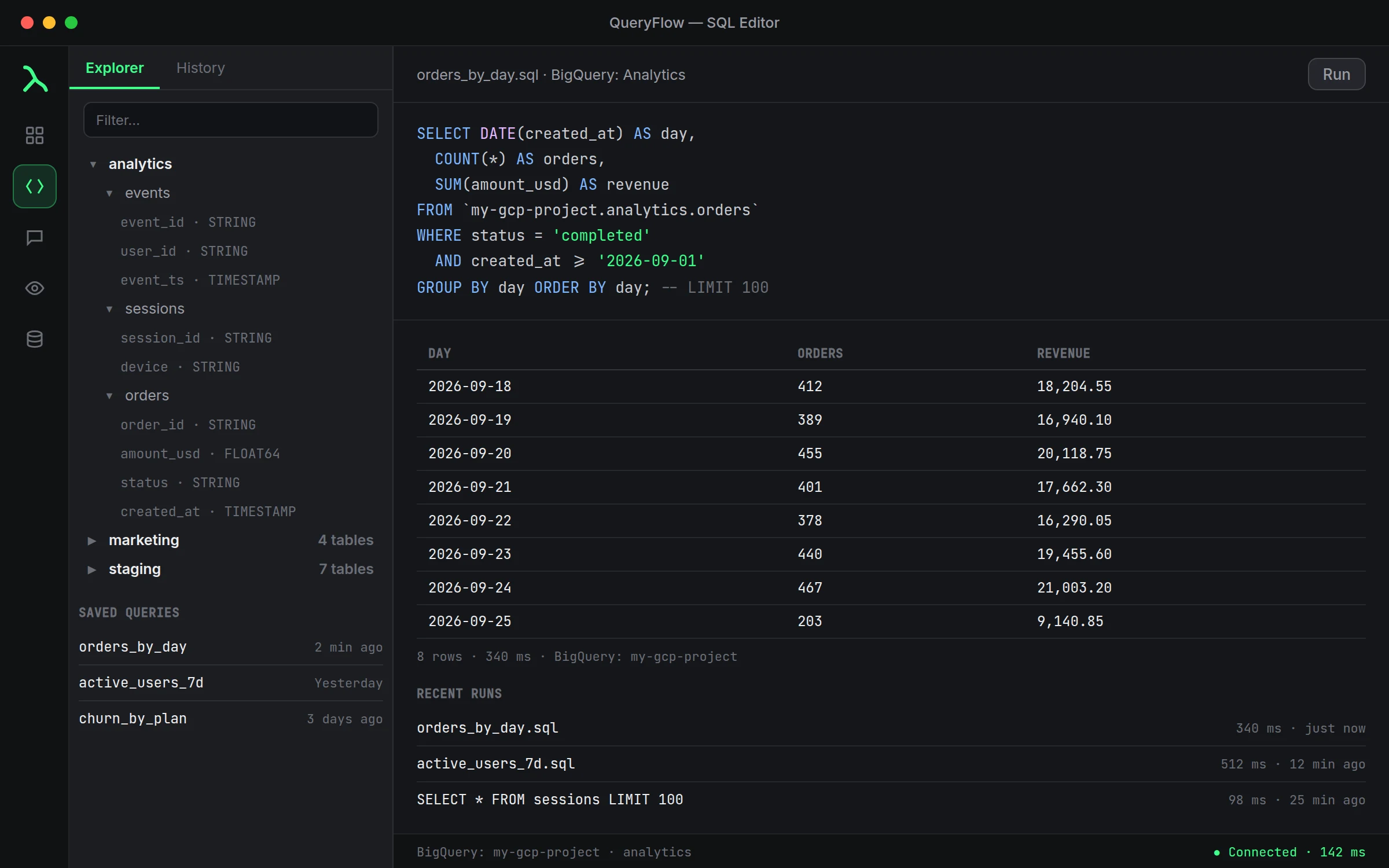
Pull thirty days of order totals from BigQuery, then compute a 7-day rolling average in the next cell:
-- SQL cell
SELECT order_date, SUM(total) AS daily_total
FROM `my-gcp-project.sales.orders`
WHERE order_date >= DATE_SUB(CURRENT_DATE(), INTERVAL 30 DAY)
GROUP BY order_date
ORDER BY order_date;
# Python cell
df["rolling_7d"] = df["daily_total"].rolling(7).mean()
df.plot(x="order_date", y=["daily_total", "rolling_7d"])
No CSV changed hands. The dataframe the SQL cell produced is just there for the Python cell to use.
When to skip the notebook
If the answer really is just the query result, a straight SELECT in the SQL editor is faster than opening a notebook for it. Flow Books are for the questions that need a second step, not every question.
Studio vs. Pipelines
Flow Books are part of Studio, alongside the editor and Ask panel. Scheduling a notebook's output or syncing its results into another warehouse needs Pipelines. See pricing.
Keeping the notebook and the query in sync
If you tweak the underlying table's schema, a column renamed or dropped, the SQL cell will fail the same way a standalone query would, with a clear error rather than a silent wrong answer. That's worth knowing before you build a Flow Book you plan to reuse for months: it's not more fragile than a plain query, but it isn't more forgiving either.
A second worked example: joining against a static list
Say you pulled account activity from BigQuery and want to flag accounts on a VIP list that lives in a spreadsheet, not the warehouse:
# Python cell, after the SQL cell above
vip_ids = set(["acct_104", "acct_299", "acct_512"])
df["is_vip"] = df["account_id"].isin(vip_ids)
df[df["is_vip"]]
That's the kind of join SQL alone handles awkwardly when one side isn't in the warehouse at all, and it's exactly what the Python cell is for.
Keeping a notebook readable months later
Name your SQL cells and Python cells something more useful than "Cell 1" and "Cell 2" if the Flow Book is going to outlive the afternoon you wrote it. A short label above each cell describing what it does costs a few seconds now and saves you from re-reading the whole notebook top to bottom the next time you open it.
Saving a Flow Book alongside the queries it's built on
A Flow Book file can live next to the plain SQL queries you've saved from the editor, there's no requirement to choose one workflow exclusively. Use the standalone editor for a query you'll run as-is, and reach for a Flow Book only once a question genuinely needs a second, non-SQL step.
A note on result size in a notebook
The same 100,000-row limit that applies to a plain query applies to a SQL cell's result too. If you're pulling data into a Flow Book for a larger analysis, aggregate down in the SQL cell rather than trying to pull raw rows past that limit into Python.
Sharing a Flow Book with a teammate
Save the file somewhere shared, the same place you'd keep any other project file, and note in the first cell what connection it expects. Someone opening it later needs their own working BigQuery connection with the same access; the notebook itself doesn't carry your credentials along with it.