Why the editor matters more than the dialect
Most SQL editors treat every warehouse the same and hope for the best. GoogleSQL has real differences from standard SQL, array and struct handling especially, and an editor that doesn't know the difference just highlights keywords and calls it a day. QueryFlow's editor understands the dialect: it knows UNNEST flattens an array, it knows project.dataset.table needs backticks, and its autocomplete offers your real column names, not a generic guess.
What you get
- GoogleSQL-aware autocomplete. Suggestions come from your connected project's actual datasets, tables and columns.
- Inline completions. Pause typing and a suggestion appears, filled in from both directions, not just left to right. Accept it with Tab.
- Multi-tab workspace. Keep a production query in one tab and a scratch query in another without either losing its result set.
How it works
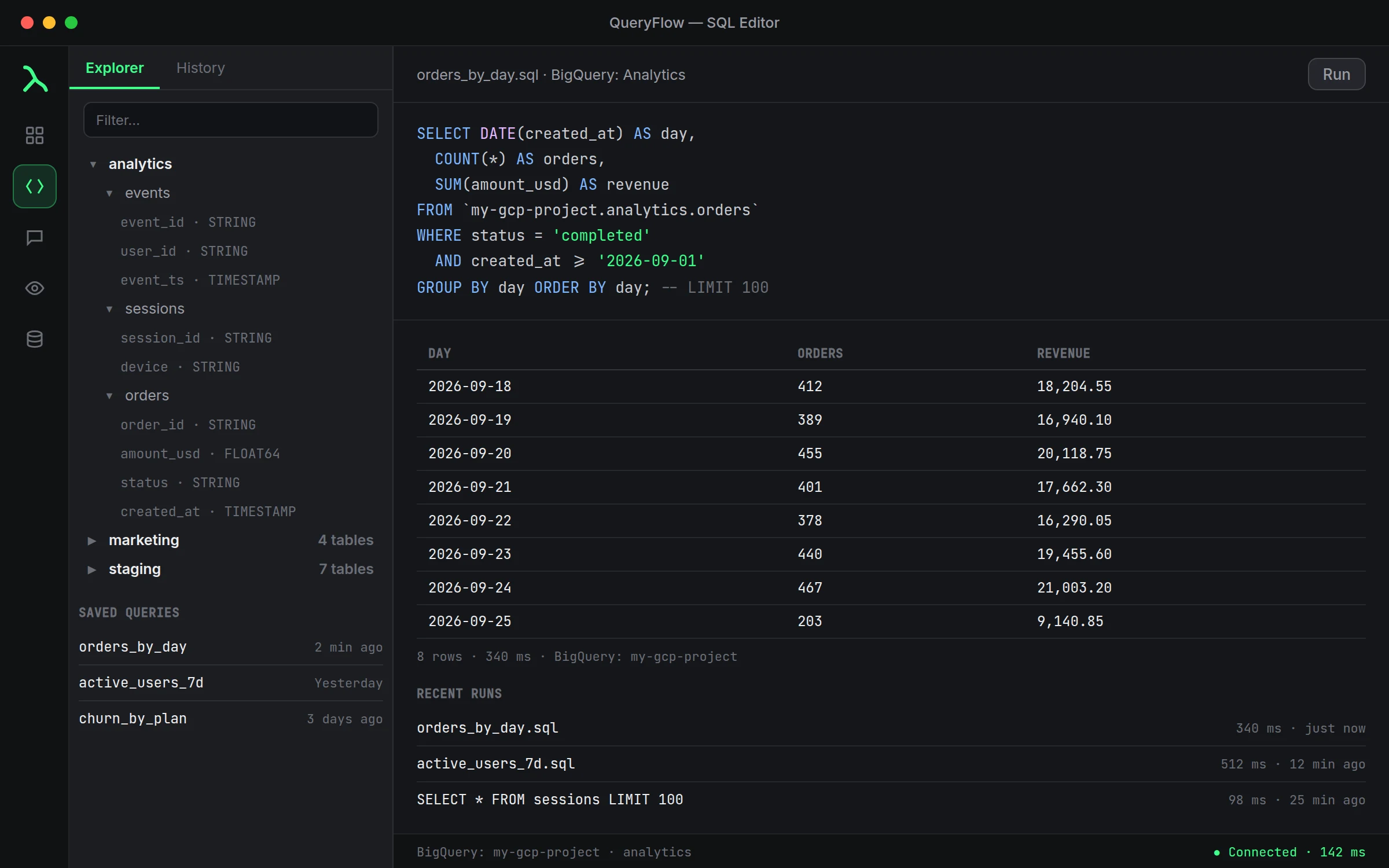
1. Connect your project. Sign in with Google or add a service account key. 2. Open the Explorer tab in the SQL Editor's sidebar and expand a dataset. 3. Right-click a table for a starting query, or write your own from scratch.
A worked example
You want the top five referrers by session count, flattening a nested array of UTM parameters most tools would fight you on:
SELECT referrer, COUNT(*) AS sessions
FROM `my-gcp-project.web.sessions`,
  UNNEST(utm_params) AS param
WHERE param.key = 'source'
GROUP BY referrer
ORDER BY sessions DESC
LIMIT 5;
Autocomplete offers referrer and utm_params as soon as you type the table name, and the results land in a native table you can sort without a page repaint.
Query history you can actually search
Every query you run gets saved to history automatically, searchable by table name or by a snippet of the SQL itself. If you wrote something useful last Tuesday and didn't think to save it as a file, history is usually where it still lives, which matters more on BigQuery than most warehouses since a decent query against a large table can take real thought to get right.
A second example: arrays without the usual fight
Say a table stores tags as a repeated field and you want the most common one per category:
SELECT category, tag, COUNT(*) AS uses
FROM `my-gcp-project.catalog.products`, UNNEST(tags) AS tag
GROUP BY category, tag
QUALIFY ROW_NUMBER() OVER (PARTITION BY category ORDER BY COUNT(*) DESC) = 1;
Autocomplete offers tags and tag correctly at each stage because the editor tracks what UNNEST produced, not just the original table's columns.
Formatting long queries without fighting the editor
GoogleSQL queries with multiple UNNESTs and window functions get long fast. The editor's automatic indentation follows your parentheses and clause structure, so a query nested three levels deep still reads top to bottom instead of turning into a single unreadable line. That matters more when you are the one debugging a coworker's query months later with none of the original context.
When you'd rather ask than type
Press ⌘L to open the Ask panel and describe what you want in plain English. It writes GoogleSQL against your real names and shows you the query before anything runs, and you can send that same query straight to Watch This or a schedule.
Studio vs. Pipelines
The editor, explorer and Ask panel are Studio. Scheduling a query's output and Data Sync into another table are Pipelines. See pricing for details.
What it doesn't do
It won't tell you how much a query costs before you run it. For anything touching a table in the billions of rows, check BigQuery's own validator first, the editor doesn't replace that step.
Copying results out
A result grid can be copied as TSV for pasting into a spreadsheet, or exported to CSV directly, without a separate export dialog buried three menus deep. For a quick one-off share with a coworker who doesn't have warehouse access, that's usually faster than setting up a scheduled job just to move ten rows once.
Keyboard-first, when you want it
Common actions, running the current query, opening the Ask panel, switching tabs, all have keyboard shortcuts, so a fast typist can stay off the mouse for most of a session. It's not required, the toolbar buttons do the same things, but it adds up over a day of back-and-forth between a dozen small queries.