Before you start
A working connection and a query that returns what you want emailed. Any tier: Email output is in Studio.
Steps
- Write or open your query in the SQL Editor.
- Click Schedule in the toolbar.
- Pick a Trigger Type: Manual, Interval, Daily, Weekly, or Custom Cron, and set the time.
- Choose Email under output.
- Turn on Enable immediately and click Create Job.
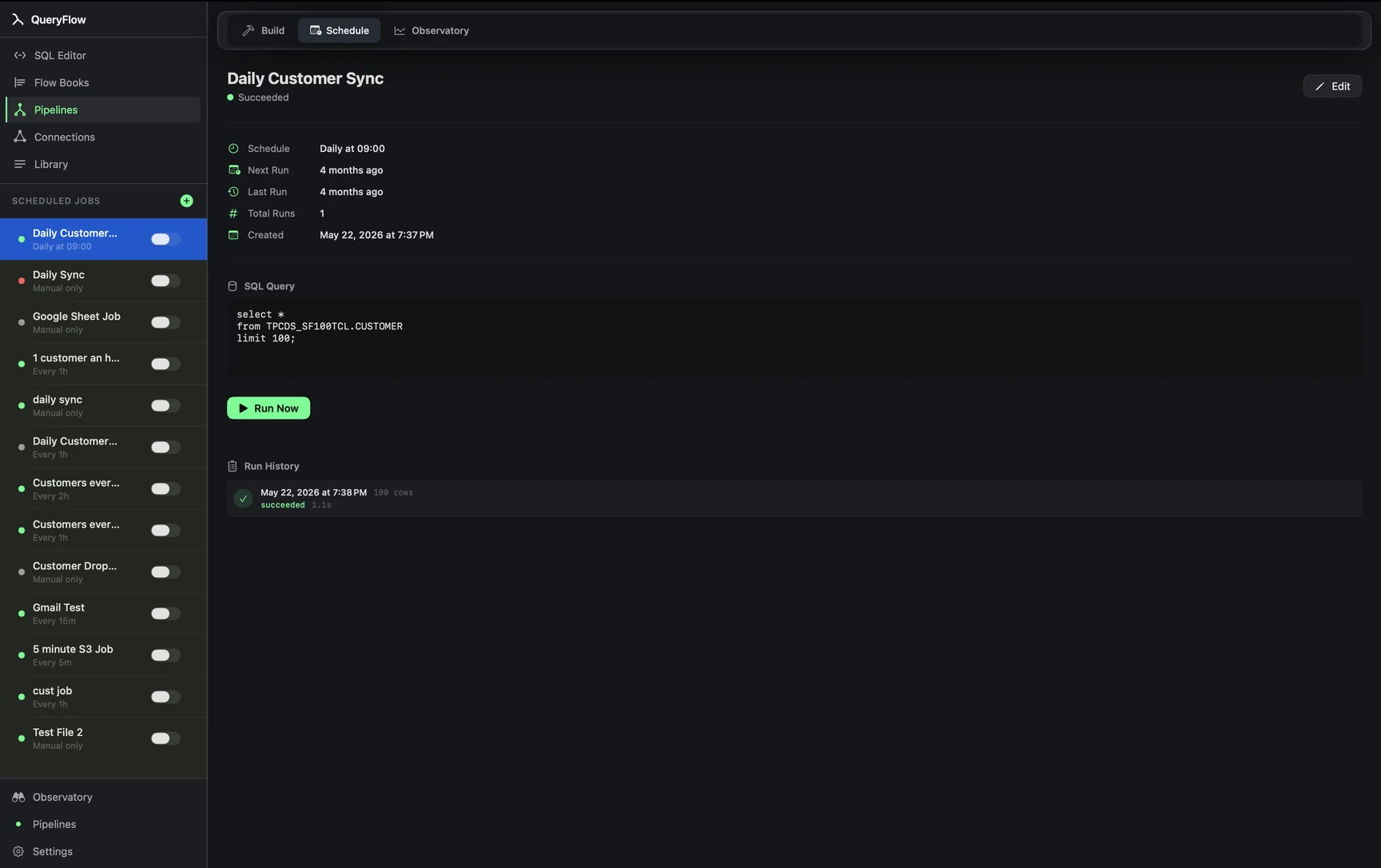
A worked example
Say you want a daily count of failed orders from Postgres, emailed at 7 AM before the team's stand-up:
SELECT status, COUNT(*) AS order_count
FROM orders
WHERE created_at >= CURRENT_DATE - INTERVAL '1 day'
  AND status = 'failed'
GROUP BY status;
Schedule it Daily at 7:00 AM with Email as the output. The results attach as a file to the email; there's no template to design or subject line to configure beyond what QueryFlow generates automatically.
Running it with the app closed
Email output is one of the destinations the background helper covers, but only for Snowflake, Redshift with IAM keys, BigQuery, and Databricks sources. The Postgres example above needs QueryFlow open at 7 AM to fire; swap the source for BigQuery or Databricks and turn on Run Jobs When App Is Closed in Settings → Scheduling, and it'll go out even if you're still asleep with the laptop shut.
Check it worked
Open the job's run history after its next scheduled time and confirm a successful run, then check your inbox for the attached results.
Troubleshooting
| If you see | Fix |
|---|---|
| Job doesn't run while the app is closed | Check the source is Snowflake, Redshift (IAM), BigQuery, or Databricks — other sources need the app open. |
| No email arrives, but the run history shows success | Check spam, and confirm the address under your account settings. |
| Job fails immediately | Open its run history; it's usually the same error a connection Test would show. |
Formatting the results
The query itself controls what the email contains, since the attached results are exactly what the query returns. If a report reads badly as a raw table, the fix is almost always in the SQL: round a number with ROUND(amount, 2), rename a column with a clearer alias (COUNT(*) AS failed_orders instead of a generic count), or sort it in the order a reader would actually scan it. There's no separate templating layer to fight with; the query is the report.
One email, or several
Each scheduled job sends to the account's configured email address. For a report that needs to reach several people, the more reliable pattern is a shared inbox or a distribution list as the target address, rather than trying to fan one job out to multiple individual recipients. Set that up once at the address level and every future scheduled email benefits, not just this one job.
When email is the wrong output
Email works well for a report a person reads and then acts on or ignores. It works less well as a way to feed another system, since someone (or some script) then has to open the email and pull the attachment back out programmatically, which is exactly the kind of manual step scheduling was supposed to remove. If the destination is really another system rather than a person, S3, SFTP, or a database table is the more direct path, and Pipelines is worth it for that alone.
Studio is enough for this one
Email output doesn't require Pipelines, so this particular pattern, write a query, schedule it Daily, choose Email, works on the $9.99/mo Studio tier without needing to upgrade. It's a reasonable first scheduled job to try before deciding whether the Pipelines-only destinations are worth the jump for anything else you're building.
Keeping the subject useful
QueryFlow generates the email automatically, which means the subject line and body text follow a consistent format rather than something you customize per job. If a subject line that says which job produced it matters to you, naming the query or the scheduled job clearly (a descriptive name rather than a generic "Query 1") is the practical way to make that clear at a glance in a crowded inbox.
Full walkthrough of the rest of the Schedule dialog: the scheduling tutorial.