Before you start
A Google Sheets destination added under Destinations (the spreadsheet and tab it writes into), a query, and Pipelines.
Steps
- Add a Google Sheets destination once, if you haven't: click the + next to Destinations, choose Google Sheets, sign in, pick the spreadsheet and tab, and save.
- Write or open your query in the SQL Editor.
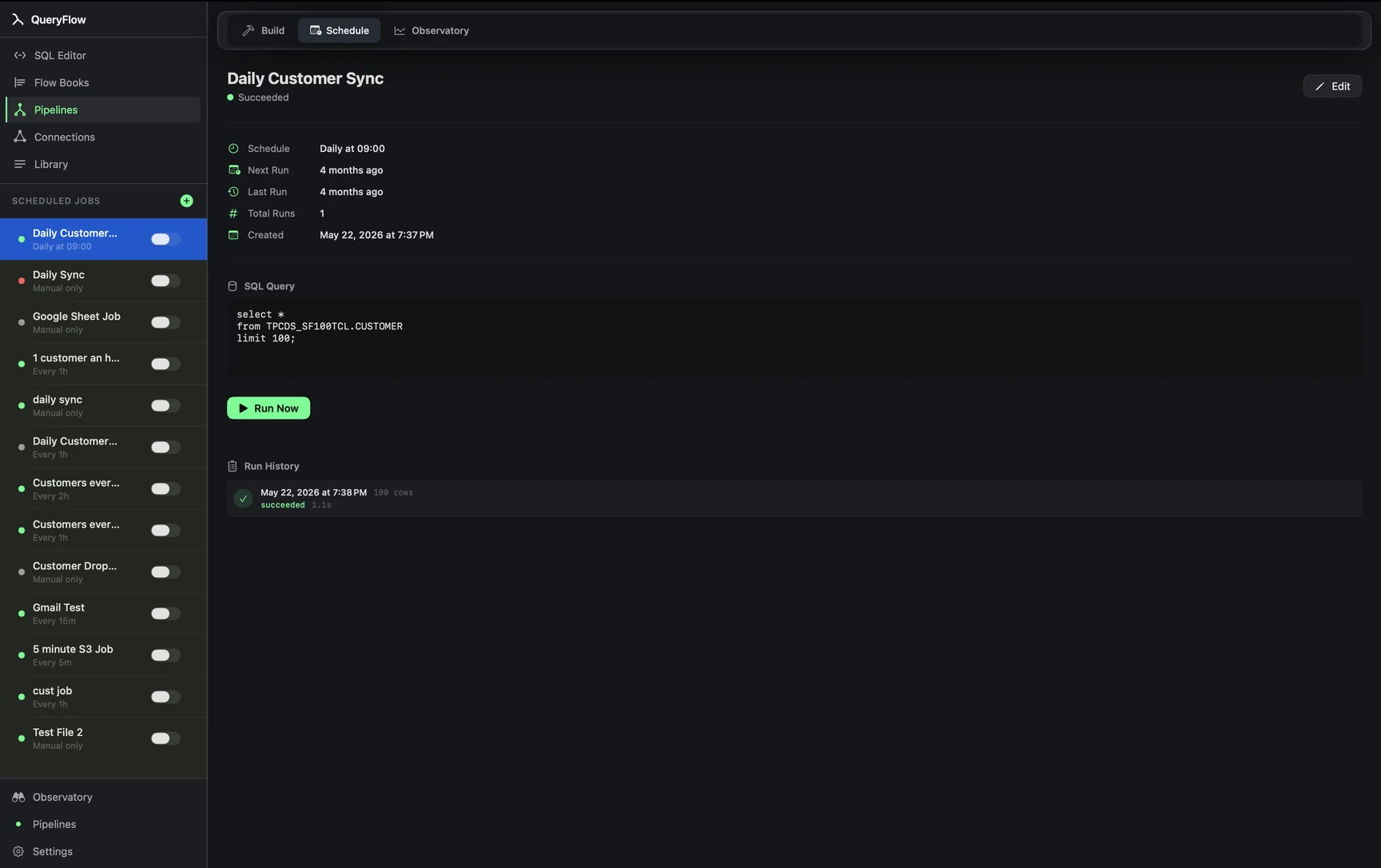
- Click Schedule in the toolbar.
- Pick a Trigger Type and set the time.
- Choose your saved Google Sheets destination under output.
- Turn on Enable immediately and click Create Job.
A worked example
A weekly revenue-by-region rollup from Snowflake, refreshed every Monday for a sheet finance already checks:
SELECT region, SUM(amount) AS revenue
FROM sales.public.orders
WHERE order_date >= DATEADD(day, -7, CURRENT_DATE())
GROUP BY region
ORDER BY revenue DESC;
Schedule it Weekly, Mondays at 6:00 AM, output to the Google Sheets destination. Each run overwrites the target range with fresh rows, so the sheet always reflects the last query run rather than accumulating old data underneath.
A note on app-closed jobs
Google Sheets isn't one of the destinations the background helper delivers to while QueryFlow is closed. This job needs the app open and running at its scheduled time, whatever the source, so this is a good one to pair with a Daily or Weekly trigger you know you'll be at your Mac for, or to leave QueryFlow running in the background on a machine that's usually on.
Check it worked
Check the run history for a successful run, then open the sheet and confirm the rows are current.
Troubleshooting
| If you see | Fix |
|---|---|
| No Google Sheets destinations available | Add one under Destinations first and sign in with Google. |
| Job doesn't run while the app is closed | Sheets isn't a background-helper destination; keep QueryFlow open, or switch the run time to when it usually is. |
| Sheet doesn't update | Confirm the tab name still matches; a renamed tab breaks the destination until you re-point it. |
Overwrite versus append behavior
A refresh-style sheet, where each run replaces the range with the current query result, suits a status dashboard someone glances at. If you'd rather keep a running history in the sheet instead, the more reliable approach is scheduling the query to output to a file or a database table built for accumulation, and treating the Sheets destination as a "current snapshot" view rather than a log. Trying to make a spreadsheet do both jobs at once tends to produce a sheet nobody trusts.
Who else can see it
Because this writes into a normal Google Sheet, anyone the sheet is already shared with sees the refreshed numbers without needing a QueryFlow account or a login of their own. That's often the actual point: a stakeholder who'll never open QueryFlow still gets current numbers, because the interface they're already comfortable with, a spreadsheet, is the one being kept current.
Formulas built on top of the range
Because the scheduled write only touches the range it's configured to fill, it's safe to build formulas, charts, or pivot tables elsewhere in the same spreadsheet that reference that range. Those recalculate automatically the moment the scheduled write lands, the same way they would if a person had pasted the numbers in by hand. This is a common pattern: QueryFlow owns one tab of raw numbers, and the rest of the spreadsheet is built by whoever actually uses it, without either side stepping on the other.
A caution on shared editing
If someone manually edits cells inside the range QueryFlow writes to, expect those edits to be overwritten on the next scheduled run. Treat the written range as owned by the job, and keep any manual notes or formulas in adjacent columns the sync doesn't touch.
Choosing a refresh cadence
A sheet reviewed once a week doesn't need an hourly refresh; a Weekly trigger matched to when the sheet actually gets opened avoids burning warehouse credits on runs nobody sees the result of before the next one overwrites it. Match the trigger to the reading habit, not to how often the underlying data technically changes.
See the scheduling tutorial for the full Schedule dialog.