Before you start
A working Salesforce connection and a working Snowflake connection, both added under Databases, and a Snowflake table to write into. Pipelines tier. Note Salesforce isn't in the list of sources the background helper runs with QueryFlow fully closed (that's Snowflake, Redshift, BigQuery, and Databricks jobs); a Salesforce sync needs the app open, or a scheduled macOS wake, to fire unattended.
Steps
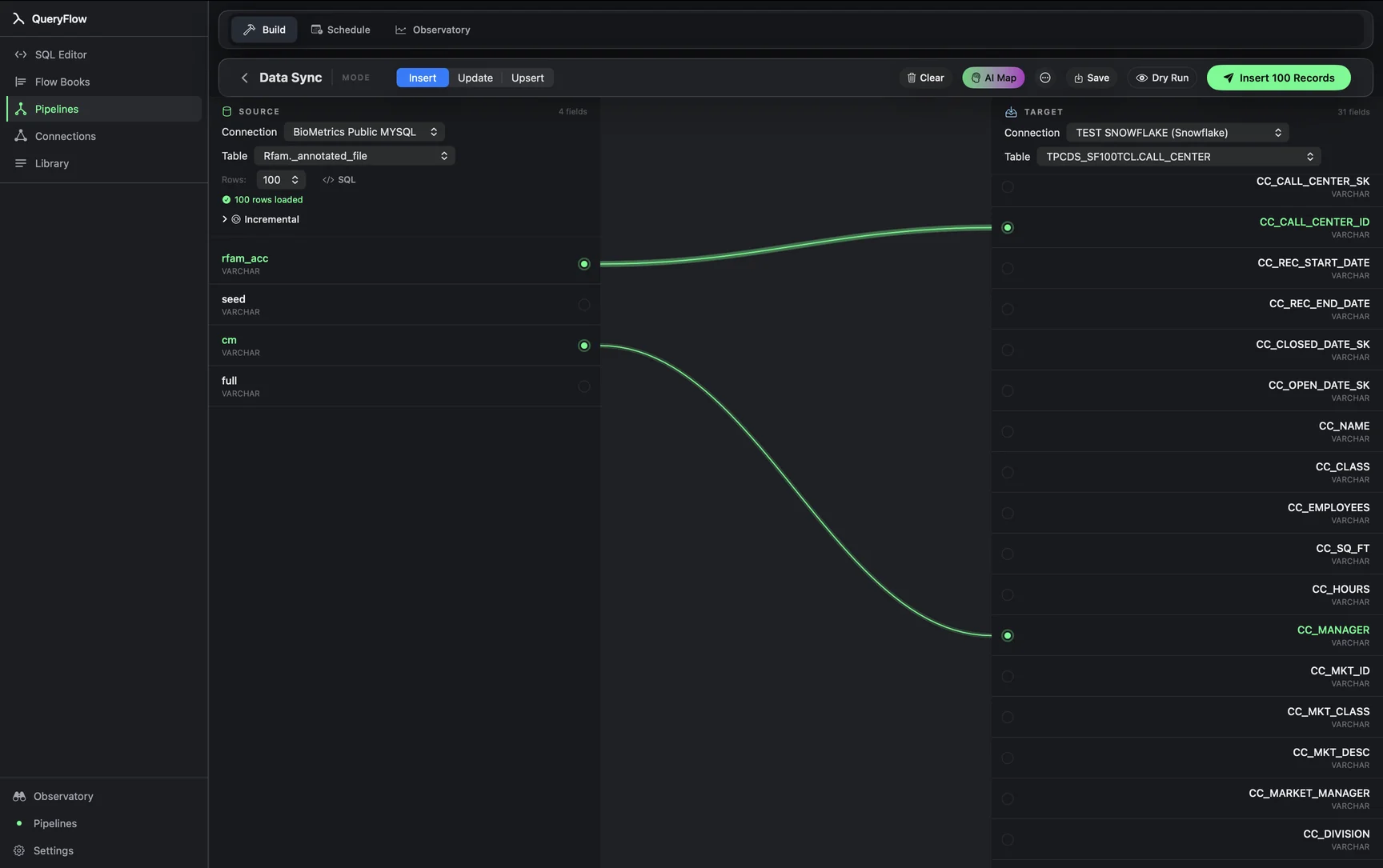
- Open Pipelines → Build and click New Sync.
- On the left, pick your Salesforce Connection and write a SOQL query, or pick an object directly.
- On the right, pick your Snowflake Connection and target Table.
- Drag from a source field to a target field, or click AI Map.
- Pick a MODE: Insert, Update, or Upsert.
- For Update or Upsert, choose a MATCH ON field, usually Salesforce's own record Id.
- Click Dry Run, then Save it as a job or run it now.
A worked example
A revenue team wants closed-won opportunities landing in Snowflake nightly for a finance dashboard that already lives there. The Salesforce source, written as SOQL rather than SQL:
SELECT Id, Name, Amount, StageName, CloseDate, LastModifiedDate
FROM Opportunity
WHERE StageName = 'Closed Won'
AND LastModifiedDate = LAST_N_DAYS:2
The Snowflake target, a fully qualified database and schema reference the way Snowflake expects it:
ANALYTICS.SALESFORCE.OPPORTUNITIES
Map Id to a Snowflake SF_ID column, Amount, StageName, and CloseDate, set MODE to Upsert, and MATCH ON to SF_ID, since Salesforce's 18-character record Id is stable and unique across the object's lifetime. QueryFlow implements Snowflake Upsert as a MERGE statement matched on that key: matched rows update in place, unmatched rows insert, in a single pass.
Check it worked
Dry Run first to confirm the SOQL query returns the rows you expect and the row count is sane. After a live run, query the Snowflake table and compare a few records against Salesforce directly, particularly currency fields if your org uses multi-currency, since Salesforce's Amount field can carry a currency code you'll want captured separately.
Troubleshooting
| If you see | Fix |
|---|---|
| MALFORMED_QUERY from Salesforce | Usually a SOQL syntax issue, most often a date literal that needs no quotes (LAST_N_DAYS:2, not a quoted string) or a field name that doesn't exist on the object. |
| Duplicate key values in source for key column(s) … | Confirm the SOQL query isn't returning the same Id twice, which can happen with certain relationship-field queries; add DISTINCT logic upstream or narrow the WHERE clause. |
| Job fails on write | Give the Snowflake role running the job the INSERT and UPDATE privilege on the target table, or USAGE on the schema if the table doesn't exist yet. |
Where a managed connector still wins
Fivetran's own Salesforce connector, and the one this exact page targets on Fivetran's site, handles API version bumps, field-level security nuances, and Salesforce's own rate limits without you thinking about any of it, and it runs whether or not any Mac is on. If your org syncs dozens of Salesforce objects with complex relationship queries and needs that to run reliably with zero maintenance, a managed connector earns its cost. For a handful of objects with straightforward SOQL and a nightly or hourly cadence, the tradeoff here is smaller: you write the SOQL once, and QueryFlow's own scheduler runs it, at the cost of the app (or a Mac left running) needing to be available for the sync to fire.
Cost math against Fivetran's own pricing
Salesforce syncs are metered by MAR the same way any Fivetran connector is: distinct record Ids touched by a create, update, or delete in a calendar month, per Fivetran's own definition, counted once regardless of how many times that record changes again that month. Fivetran's pricing page shows a $5 base charge per connection plus per-MAR usage across a 1–1,000,000 MAR band, with the free plan covering up to 500,000 MAR total. A closed-won-opportunities feed touching a few thousand records a month sits comfortably inside that free allowance on Fivetran's own terms; a full-object sync across a busy Salesforce org with hundreds of thousands of actively-changing records moves into paid tiers that grow with activity. QueryFlow Pipelines is $29.99/month or $199.99/year flat, independent of how many Salesforce records the sync touches.
Type mapping between Salesforce and Snowflake
| Salesforce field type | Snowflake type | Note |
|---|---|---|
| Id (18-char) | VARCHAR(18) | Salesforce's own record identifier, stable for the record's lifetime. |
| Currency | NUMBER(18,2) | Map CurrencyIsoCode separately if the org uses multiple currencies. |
| Picklist | VARCHAR | Comes through as its label text, not an internal code. |
| DateTime | TIMESTAMP_TZ | Salesforce returns DateTime fields in UTC by default via the API. |
| Checkbox | BOOLEAN | Direct mapping. |
| Long Text Area | VARCHAR or TEXT | No practical length limit concern on the Snowflake side. |
Picklist fields deserve a second look before a sync goes live: if a Salesforce admin renames a picklist value after the sync is built, existing Snowflake rows keep the old label text until the next run picks up the change, which can look like a data quality issue in a downstream dashboard when it's really just a naming change working its way through on schedule.
API limits and larger orgs
Salesforce enforces its own API call and row-return limits depending on your org's edition and license count, and a SOQL query returning tens of thousands of records may need to be paginated rather than pulled in one call; for very large objects, narrowing the WHERE clause by a rolling date window (as in the example above) keeps each run's SOQL query comfortably inside normal API limits rather than pushing against them. If your org runs close to its daily API call allocation from other integrations already, checking Salesforce Setup → API Usage before scheduling a frequent sync avoids an unpleasant surprise when other integrations start failing on the same limit.
Monitoring the sync over time
Salesforce API versions and field-level security settings can change independently of anything in QueryFlow: a field that was visible to the connected user's profile can lose that visibility after a permission set change, which surfaces as the field silently returning null rather than an obvious error. Checking the Observatory's run history after any Salesforce permission or profile change catches this before a quarter's worth of Snowflake rows quietly go missing a column's worth of data.
A note on sandbox versus production orgs
If you're building and testing this sync against a Salesforce sandbox before pointing it at production, remember that sandbox refreshes reset data and can also reset API usernames or security tokens depending on how the sandbox was provisioned; re-test the connection after any sandbox refresh rather than assuming a working sandbox sync will keep working unchanged. Pointing the same sync at production afterward means swapping the connection, not rebuilding the SOQL or the field mapping, both of which carry over as long as the object and field names match between environments.
A note on retries
A run that fails partway through, for instance a Salesforce API session timing out mid-query, appears in the run history with Salesforce's own error text, and a retry re-issues the SOQL query from scratch. Salesforce API sessions expire on a schedule independent of QueryFlow, so an occasional retry after a session-timeout error is expected behavior, not a sign of a misconfigured connection.
Sources
- Fivetran Pricing (accessed September 26, 2026)
- Fivetran: Usage-Based Pricing (MAR definition) (accessed September 26, 2026)
Related syncs
See also: Integrations Sync BigQuery to Snowflake CSV to Snowflake on Mac.