Before you start
A working Google Sheets connection (Google sign-in) and a working Snowflake connection, both added under Databases, and a Snowflake table to write into. Pipelines tier. Like Salesforce, Google Sheets isn't on the background helper's supported list for running with the app fully closed, so keep QueryFlow open or a Mac awake for a scheduled sync to fire.
Steps
- Open Pipelines → Build and click New Sync.
- On the left, pick your Google Sheets Connection, then the spreadsheet and sheet tab.
- On the right, pick your Snowflake Connection and target Table.
- Drag from a source column to a target field, or click AI Map.
- Pick a MODE: Insert, Update, or Upsert.
- For Update or Upsert, choose a MATCH ON column that's unique per row in the sheet.
- Click Dry Run, then Save it as a job or run it now.
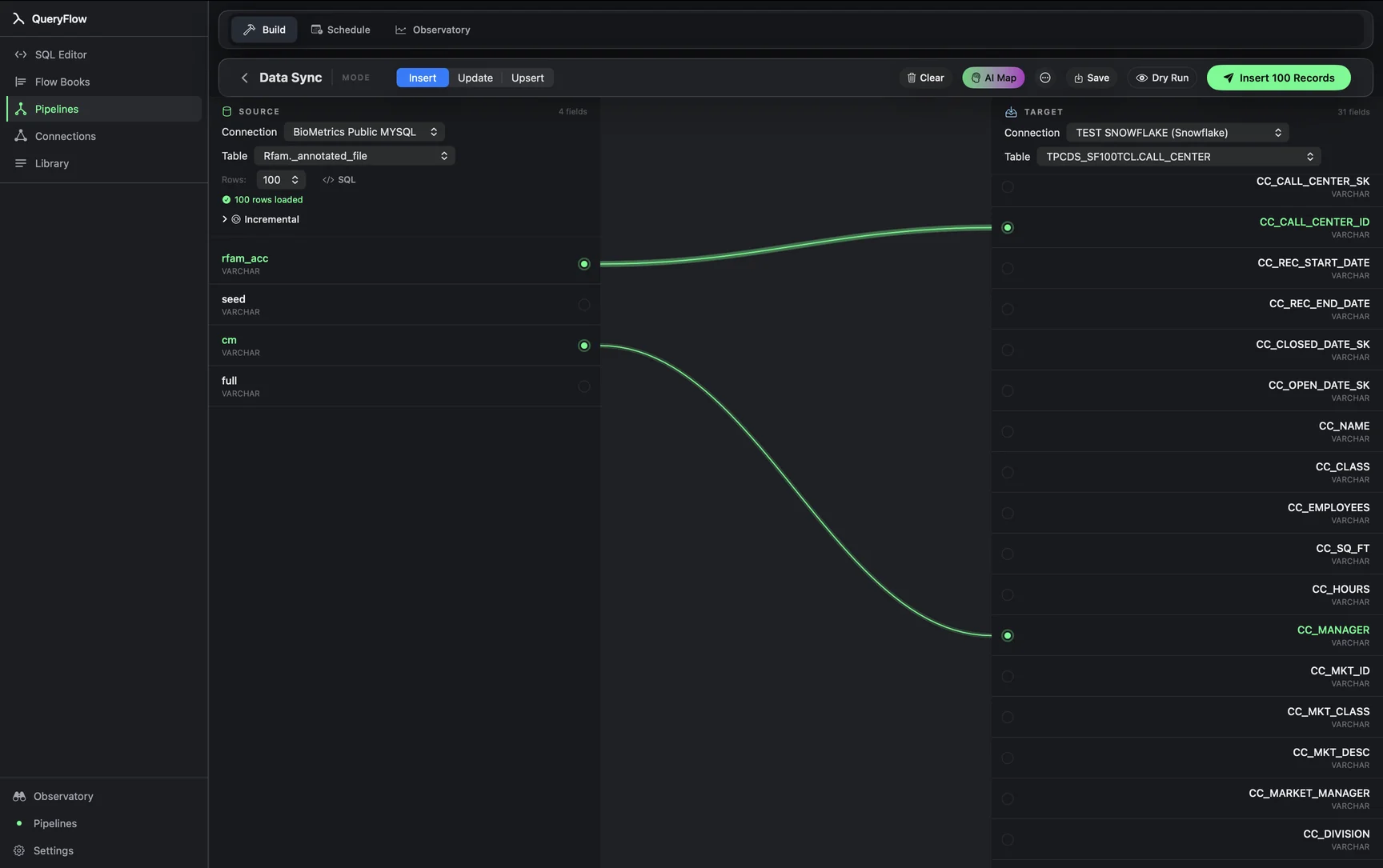
A worked example
A planning team keeps a manually-edited quarterly targets sheet that finance wants joined against actuals in Snowflake. The sheet has a header row (Region, Quarter, Target) and QueryFlow reads it as a table with those three columns. The Snowflake target, fully qualified so there's no ambiguity about which database and schema it lands in:
PLANNING.FINANCE.QUARTERLY_TARGETS
Map Region, Quarter, and Target to matching Snowflake columns, set MODE to Upsert, and MATCH ON to a composite of Region and Quarter, since that pair is unique per row and a target can be edited in the sheet without creating a duplicate row in Snowflake. Once someone edits a number in the sheet, the next scheduled run picks it up and updates the matching Snowflake row rather than appending a new one.
Check it worked
Dry Run first, since a header row that's shifted by an added column at the top of the sheet is the most common source of a silently wrong mapping. After a live run, open the Snowflake table and compare it against the sheet directly, paying attention to any column that mixes numbers and text in different rows, which Sheets tolerates and Snowflake's typed columns don't.
Troubleshooting
| If you see | Fix |
|---|---|
| Records synced, with errors listed | Usually a cell that doesn't match the target column's type, for example text in a numeric Target column. Fix the cell in the sheet or widen the Snowflake column to VARCHAR. |
| Choose at least one key field | Update and Upsert need a MATCH ON column; pick one whose values never repeat within the sheet, or add a helper column that concatenates two fields if no single column is unique. |
| Sheet not found or permission error | Confirm the Google account connected to QueryFlow actually has view access to the specific spreadsheet, not just a Google account in general. |
When to keep a spreadsheet connector instead
Tools built specifically around live spreadsheet formulas, like Coefficient, or Fivetran's own Sheets connector, are the better fit when you need Sheets-side formulas referencing warehouse data in near real time, or when non-technical stakeholders need to trigger a refresh from inside the sheet itself with no separate app involved. QueryFlow's version treats the sheet purely as a data source feeding a warehouse table on a schedule you control from QueryFlow, not from the sheet; if the workflow genuinely needs to run the other direction, warehouse data flowing back into a live sheet formula, that's a different job this sync doesn't do.
Cost math against Fivetran's own pricing
Fivetran's Google Sheets connector, like its others, is metered by MAR: distinct rows touched by a change in a calendar month, counted once no matter how many times that row is edited again. A planning sheet with a few hundred rows that gets updated occasionally generates a trivial MAR count and would sit well inside Fivetran's own free-plan allowance of 500,000 MAR, per its pricing page. The economics here really turn on volume: a small manually-maintained sheet is cheap on either platform, but the moment you're running many such sheets or a much larger one, Fivetran's $5-per-connection base charge times the number of sheet connectors adds up, where QueryFlow's Pipelines tier at $29.99/month or $199.99/year covers every sync you build inside it at one flat price.
Type mapping and sheet quirks
| Sheet cell content | Snowflake type | Note |
|---|---|---|
| Plain number | NUMBER or FLOAT | Sheets stores all numbers as floating point internally; a NUMBER(p,s) column on the Snowflake side enforces the precision you actually want. |
| Date (formatted cell) | DATE | Confirm the sheet's date format matches what QueryFlow parses; ambiguous formats like 03/04/2026 read differently depending on locale. |
| Text | VARCHAR | Direct mapping. |
| Checkbox (TRUE/FALSE) | BOOLEAN | Direct mapping. |
| Blank cell | NULL | An empty cell syncs as NULL, not as an empty string or zero. |
The most common failure mode with a spreadsheet source isn't a type mismatch, it's a human one: someone inserts a column in the middle of the sheet, and every column to its right shifts one position over. QueryFlow's field mapping is drawn against column headers, not raw positions, so a header-based mapping survives an inserted column as long as the header text itself doesn't change; a mapping drawn against raw column letters instead would silently break.
A second worked variant: appending rather than upserting
Not every sheet-backed sync wants Upsert. A sheet used to log manually-entered survey responses, where each row is a new, distinct entry rather than an edit to an existing one, is a better fit for Insert mode instead: every row in the sheet at sync time gets appended to the Snowflake table, with no MATCH ON key required, and previously-synced rows are simply left alone rather than checked for changes. The tradeoff is that if someone edits a past row's value directly in the sheet by mistake, Insert mode won't reflect that correction in Snowflake; only a fresh row shows up. Pick Upsert when the sheet represents current state that gets edited in place, and Insert when the sheet represents a growing log of distinct entries.
Monitoring the sync over time
Because a manually-edited sheet has no schema enforcement at all, the most common failure after weeks of smooth running is someone typing a stray character into what was previously a clean numeric column. The Observatory's run history surfaces that as a per-row error on the next sync rather than a silent skip, which is worth checking the first time after any noticeable change to how the sheet is being edited day to day.
A note on sheet size limits
Google Sheets itself imposes a practical ceiling on how many cells a single spreadsheet can hold, and a very large sheet can also just be slow to read through the Sheets API compared to a purpose-built database. For a sheet that's grown into the tens of thousands of rows, it's worth asking whether the workflow has outgrown a spreadsheet as the source of truth entirely, in which case moving the underlying data into a small Postgres or MySQL table and syncing from there instead is often a better long-term fix than continuing to push a spreadsheet past what it's comfortable holding.
A note on retries
A run that fails partway, for example a Google API rate limit or an expired OAuth token, shows up in the run history with the underlying error, and re-authenticating the Google connection (if the token expired) followed by a retry re-reads the sheet from scratch rather than resuming a partial read.
Sources
- Fivetran Pricing (accessed September 26, 2026)
- Fivetran: Usage-Based Pricing (MAR definition) (accessed September 26, 2026)
Related syncs
See also: Integrations Sync BigQuery to Snowflake CSV to Snowflake on Mac.