Why a BigQuery bill can surprise you
BigQuery charges by the amount of data a query scans, not by how long it runs or how many rows come back. A query that looks harmless in the editor, no WHERE clause, no LIMIT, against a table with a few years of history, can scan hundreds of gigabytes before returning ten rows. This isn't a QueryFlow-specific problem, it's how BigQuery's on-demand pricing works from any client, but the fix is the same regardless of which tool you're running the query from: control what gets scanned before you hit run, not after.
What QueryFlow shows you
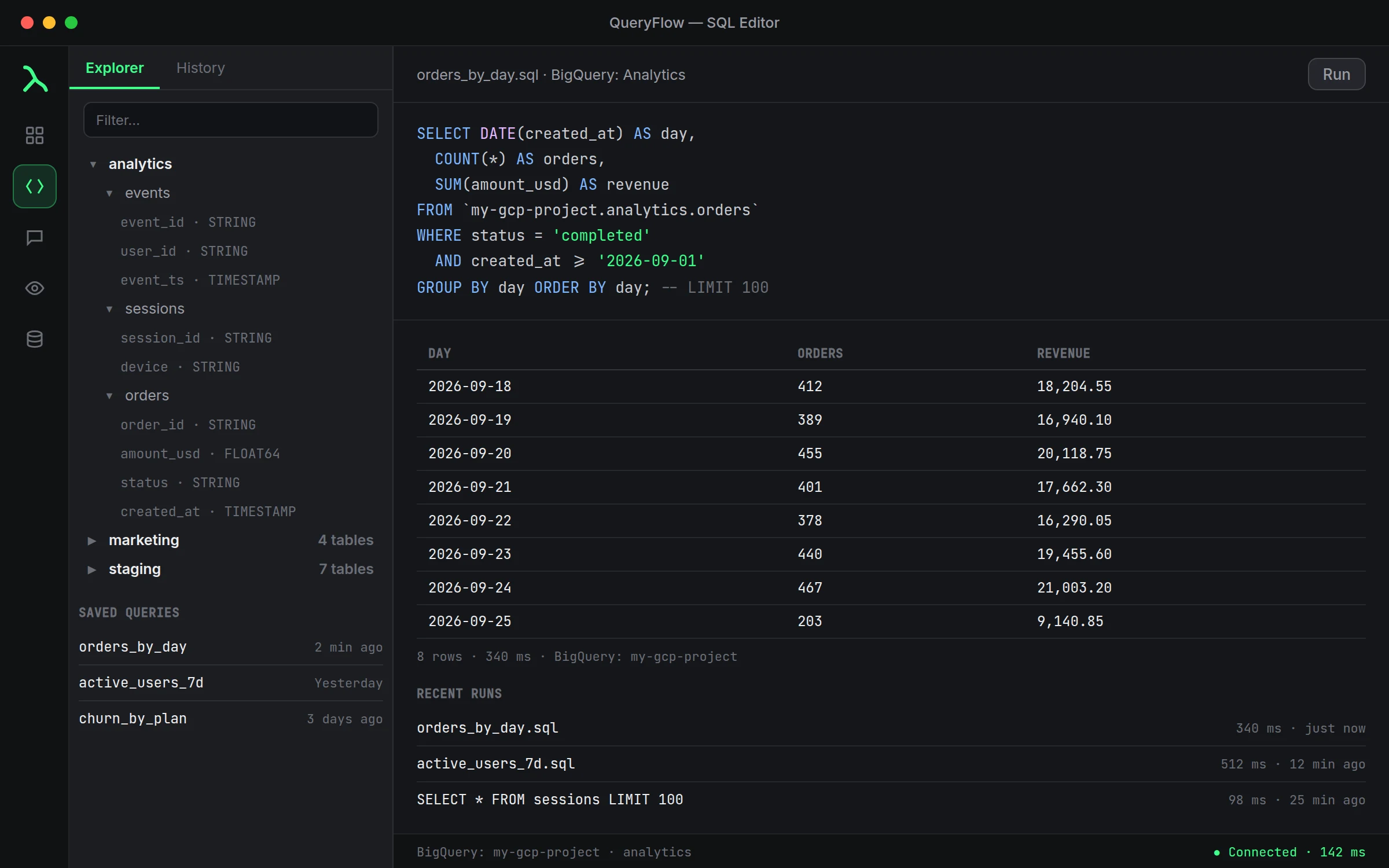
QueryFlow supports up to 100,000 rows per query against BigQuery, and the results panel shows what came back after a run. A row cap on results is not the same thing as a byte-scanned cap, and it's worth being precise about that distinction: a query can return well under 100,000 rows while still having scanned an enormous amount of source data to compute them, if it's aggregating across a huge unfiltered table.
A worked example
An unfiltered query against an events table with three years of history:
SELECT user_id, event_name, event_timestamp
FROM `my-gcp-project.analytics.events`
ORDER BY event_timestamp DESC
LIMIT 100;
The LIMIT caps what comes back, but BigQuery may still scan every row in the table to sort it before applying that limit, since there's no filter narrowing the scan itself. The safer version filters on a partitioned or clustered column first:
SELECT user_id, event_name, event_timestamp
FROM `my-gcp-project.analytics.events`
WHERE event_timestamp >= TIMESTAMP_SUB(CURRENT_TIMESTAMP(), INTERVAL 1 DAY)
ORDER BY event_timestamp DESC
LIMIT 100;
Filtering by a recent time window first means BigQuery only touches the partitions inside that window, not the full three years, before it ever gets to sorting or limiting anything.
Before you start
- Know whether the table you're querying is partitioned; that's usually the single biggest lever on scan size.
- Get comfortable checking the scanned-bytes estimate BigQuery shows before a query runs, in the console or your billing project's usage reports, not just QueryFlow's row count after.
Steps
- Write the query with a LIMIT on the rows you actually need before running it.
- For an exploratory query, filter on a partitioned column first so BigQuery doesn't scan the whole table.
- Check the row and byte count in the results panel after running before scaling the query up to a full table.
- Save a wide query as a scheduled job with a fixed LIMIT rather than re-running an unbounded version by hand.
What this doesn't do
QueryFlow doesn't set a project-wide spending cap or stop a query mid-run once it's already scanning. BigQuery's own cost controls, like custom quotas or a maximum bytes billed setting on a query, live at the project or query level in Google Cloud, not inside a client tool. QueryFlow's row limit and results view help you catch an expensive pattern before it becomes a habit, but the hard ceiling on spend is something you set in BigQuery itself.
A habit worth keeping
Before widening any query from a 1-day filter to a full table scan, run it filtered first and read the actual row and byte counts it produced. A query that returns exactly what you expect on a narrow window usually behaves the same way at scale, just with a bigger number attached, and knowing that number before you remove the filter is cheaper than finding out from next month's invoice.
The classic SELECT * mistake
A quick exploratory query against a wide table is where most surprise scans start:
SELECT *
FROM `my-gcp-project.analytics.events`
LIMIT 10;
Every column in that table gets scanned, even the ones you never look at in the ten rows that come back, because SELECT * doesn't know which columns you actually need. Naming the specific columns you want, even during exploration, is one of the cheapest habits available, since BigQuery's columnar storage means an unused column costs nothing if it's never selected in the first place.
Clustering versus partitioning
Partitioning splits a table by a column, usually a date, into physically separate chunks BigQuery can skip entirely when a query's filter excludes them. Clustering sorts data within a table by one or more columns, which narrows a scan but doesn't eliminate whole chunks the way partitioning does. For a table that's queried mostly by date, like most event or order tables, partitioning by that date column is the bigger lever. Clustering helps more when queries commonly filter on a non-date column, like a customer or region ID, layered on top of a date partition rather than replacing it.